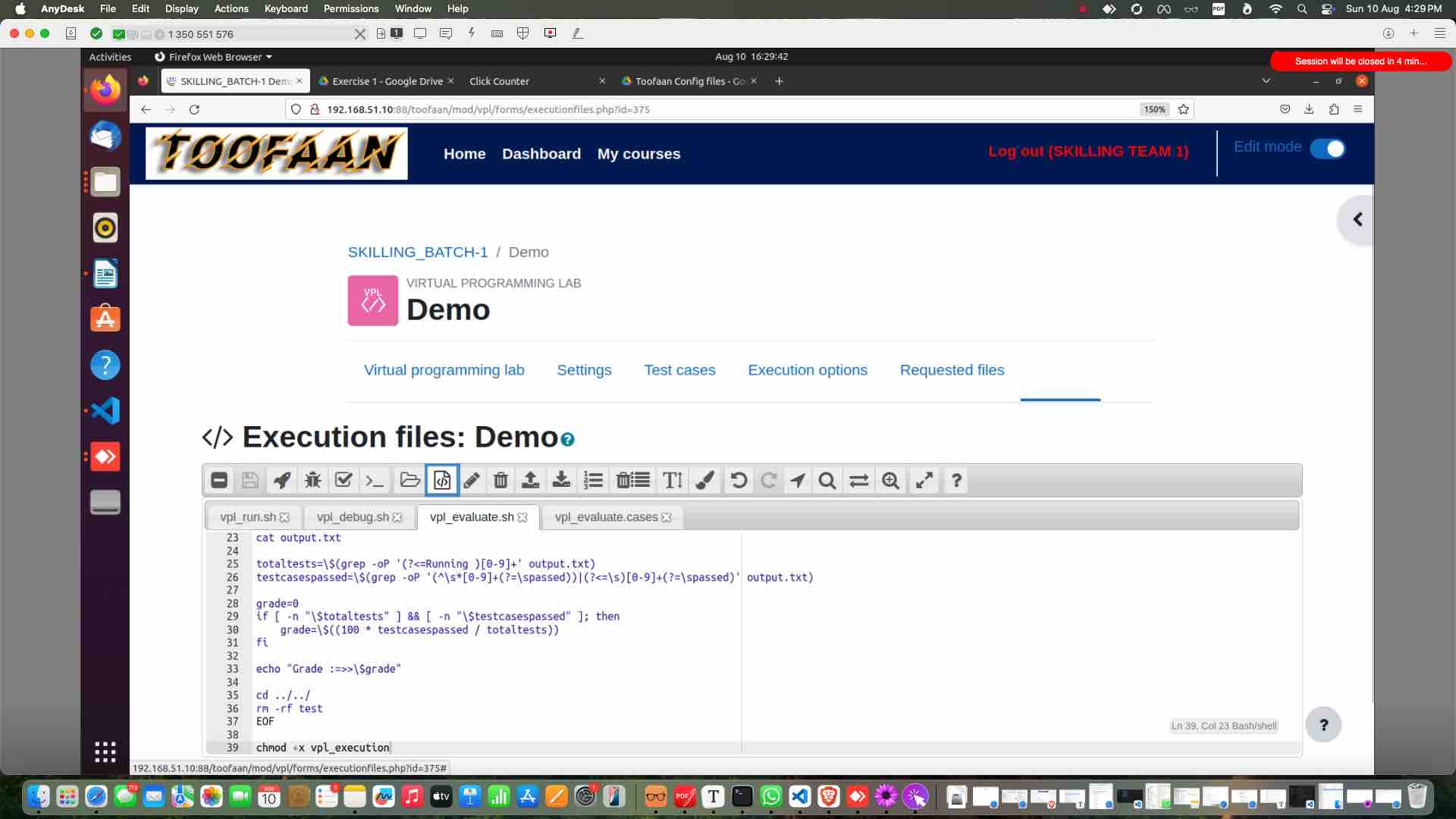
Toofaan(Manager Guide) Part 1
Toofaan Configuration by manager with his login to create exercise with playwright
This is manager dashboard
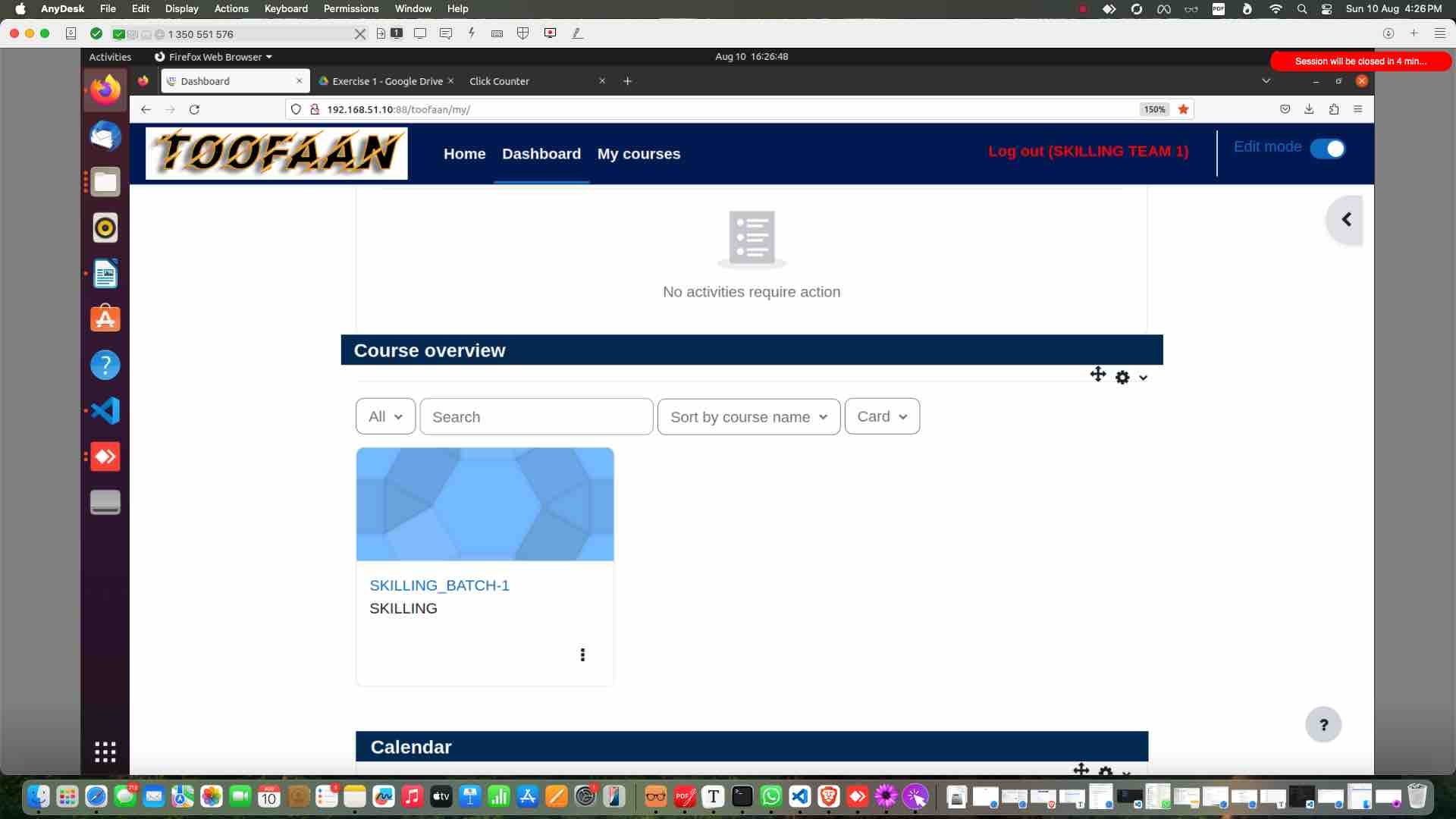

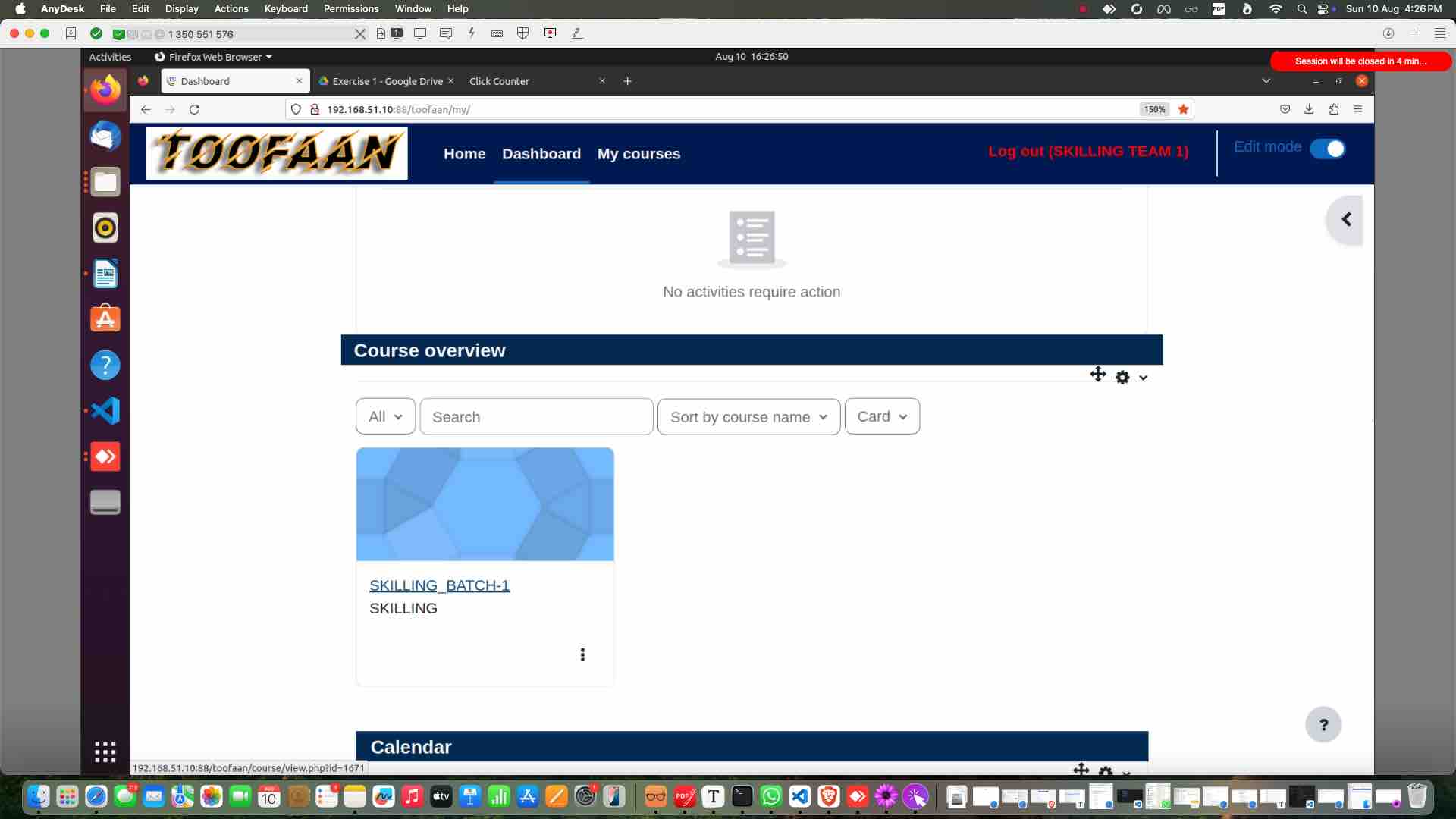
Click on the course
Enable the edit mode to 'on'
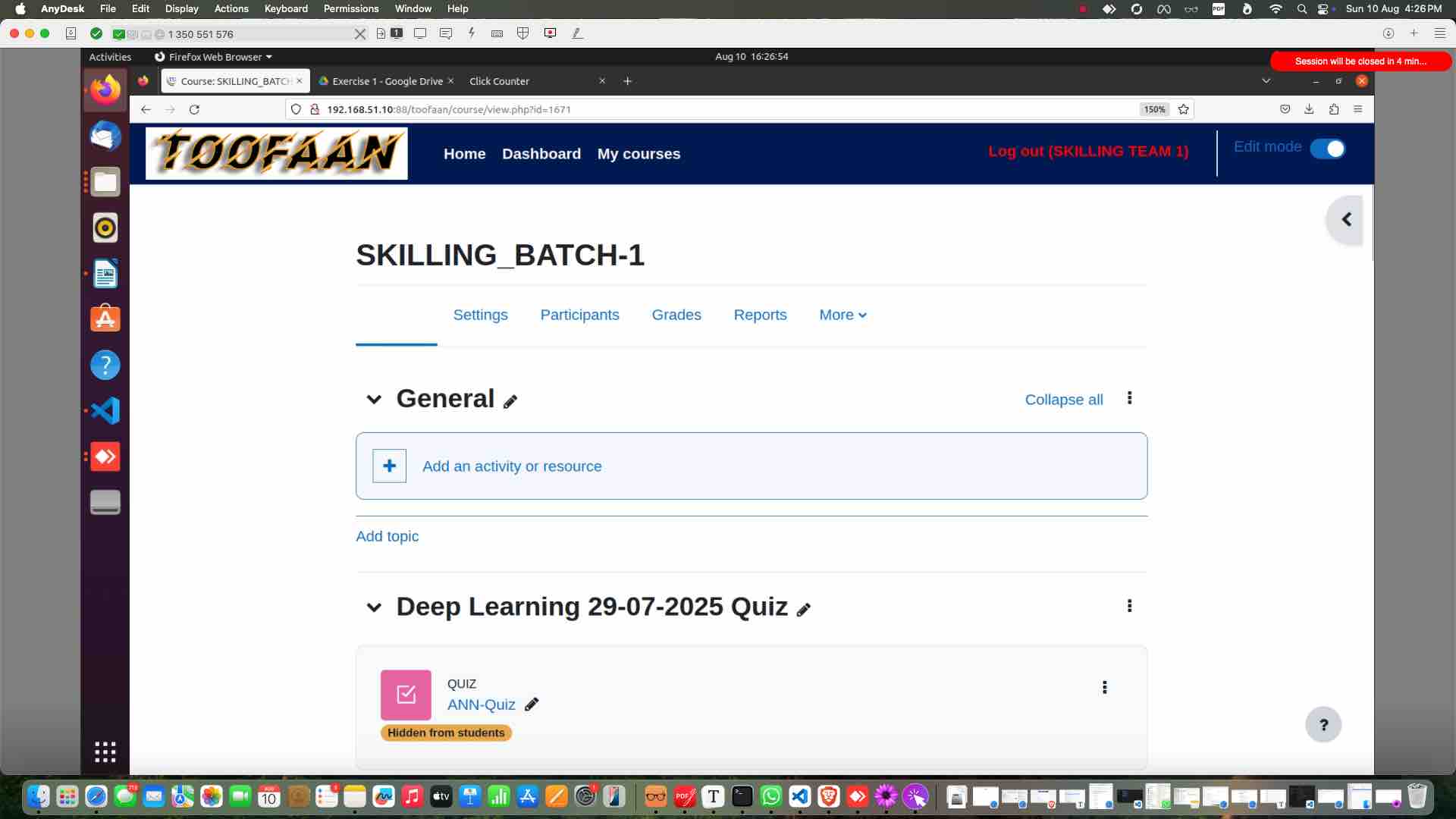
Add an activity
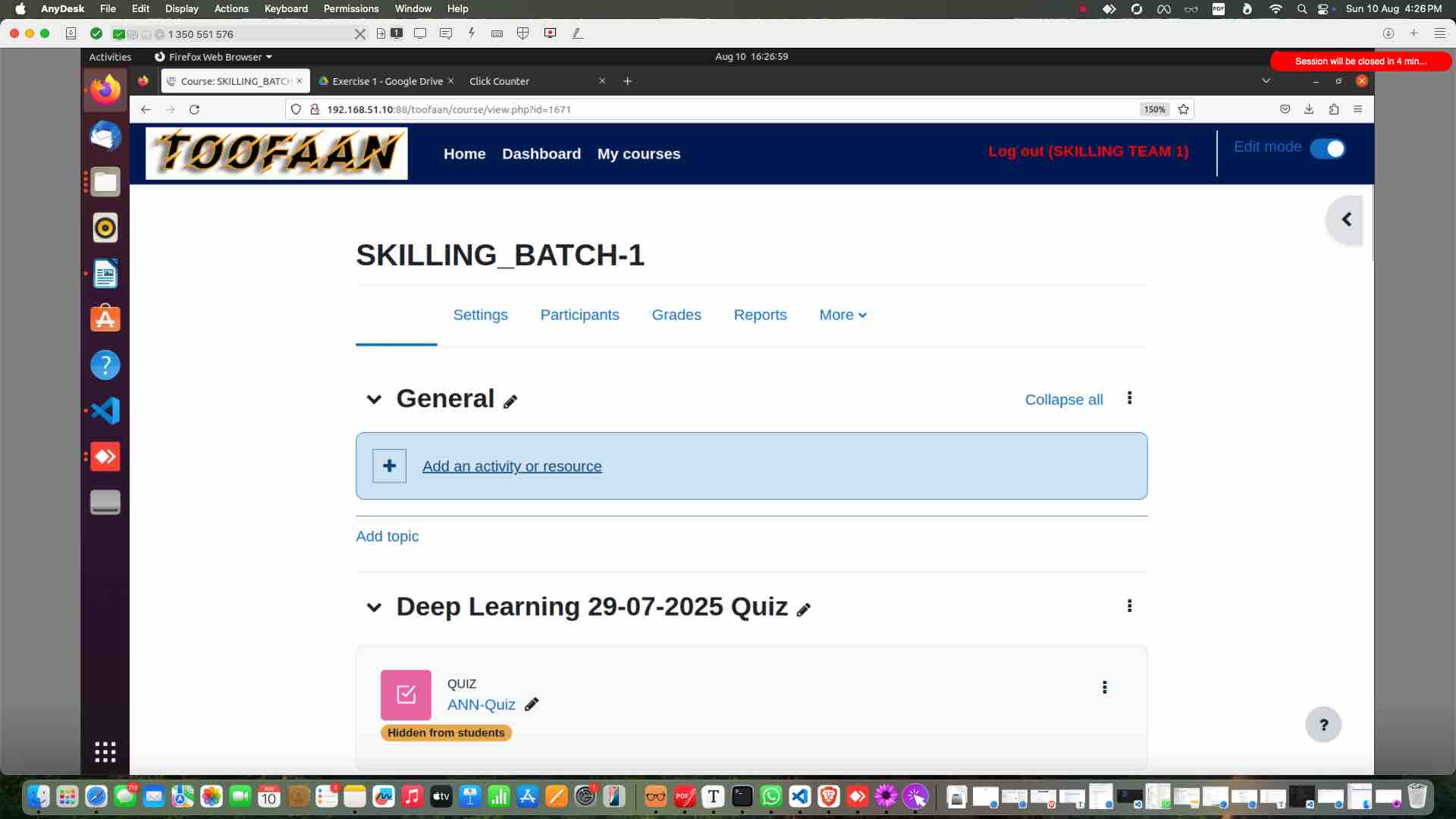
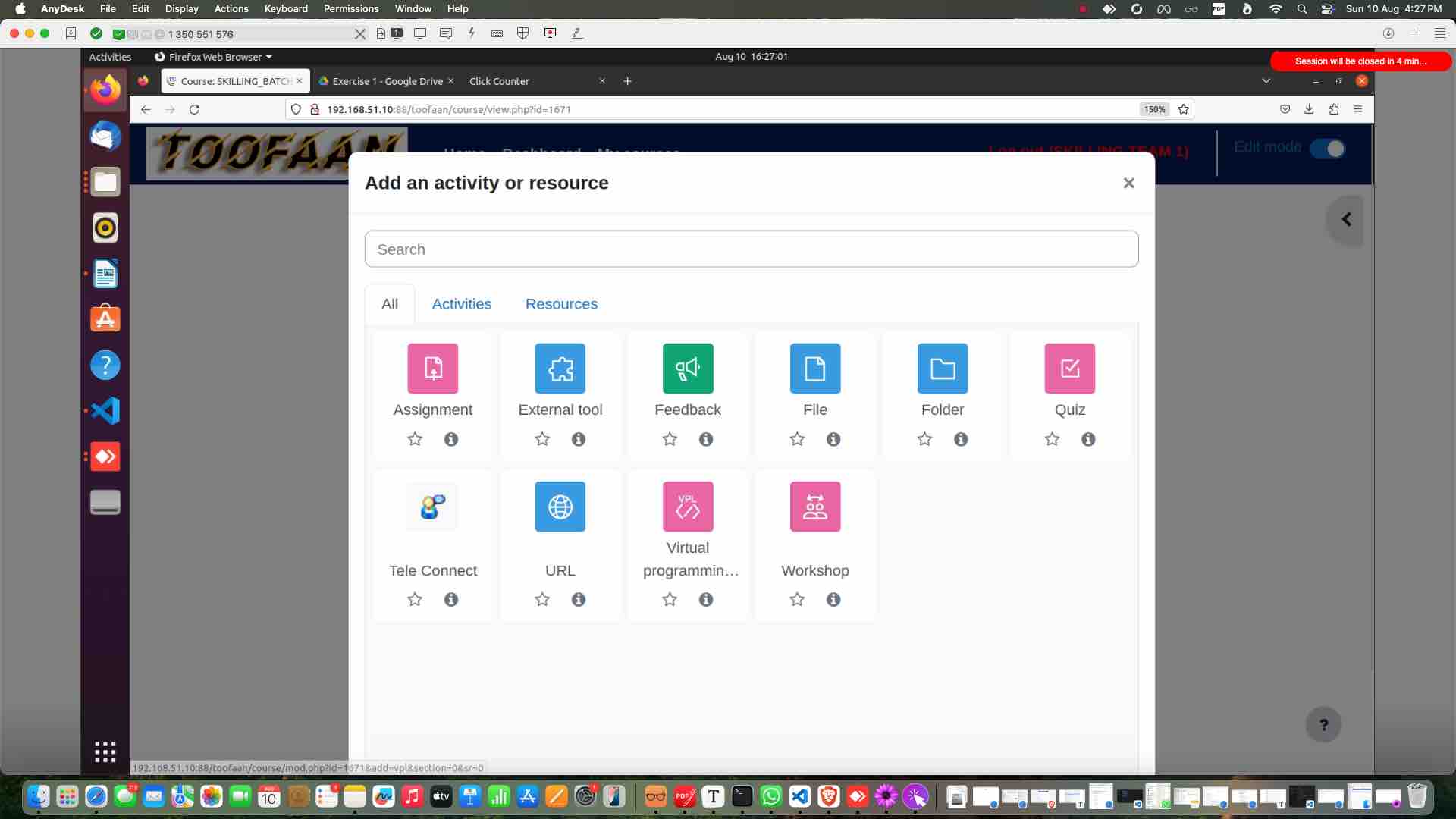
Click on VPL lab
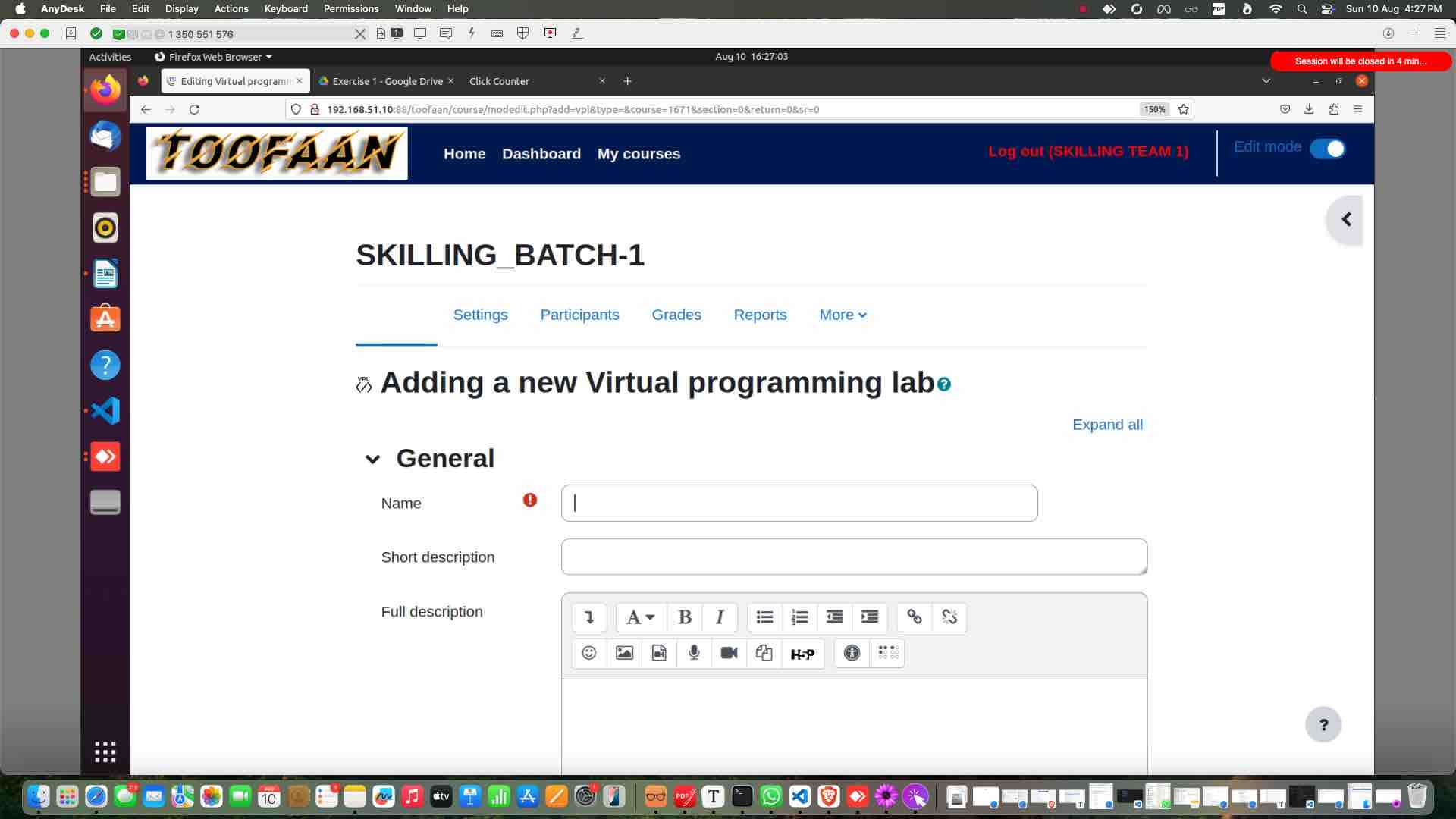
Give the exercise name
Give description of the exercise or upload image
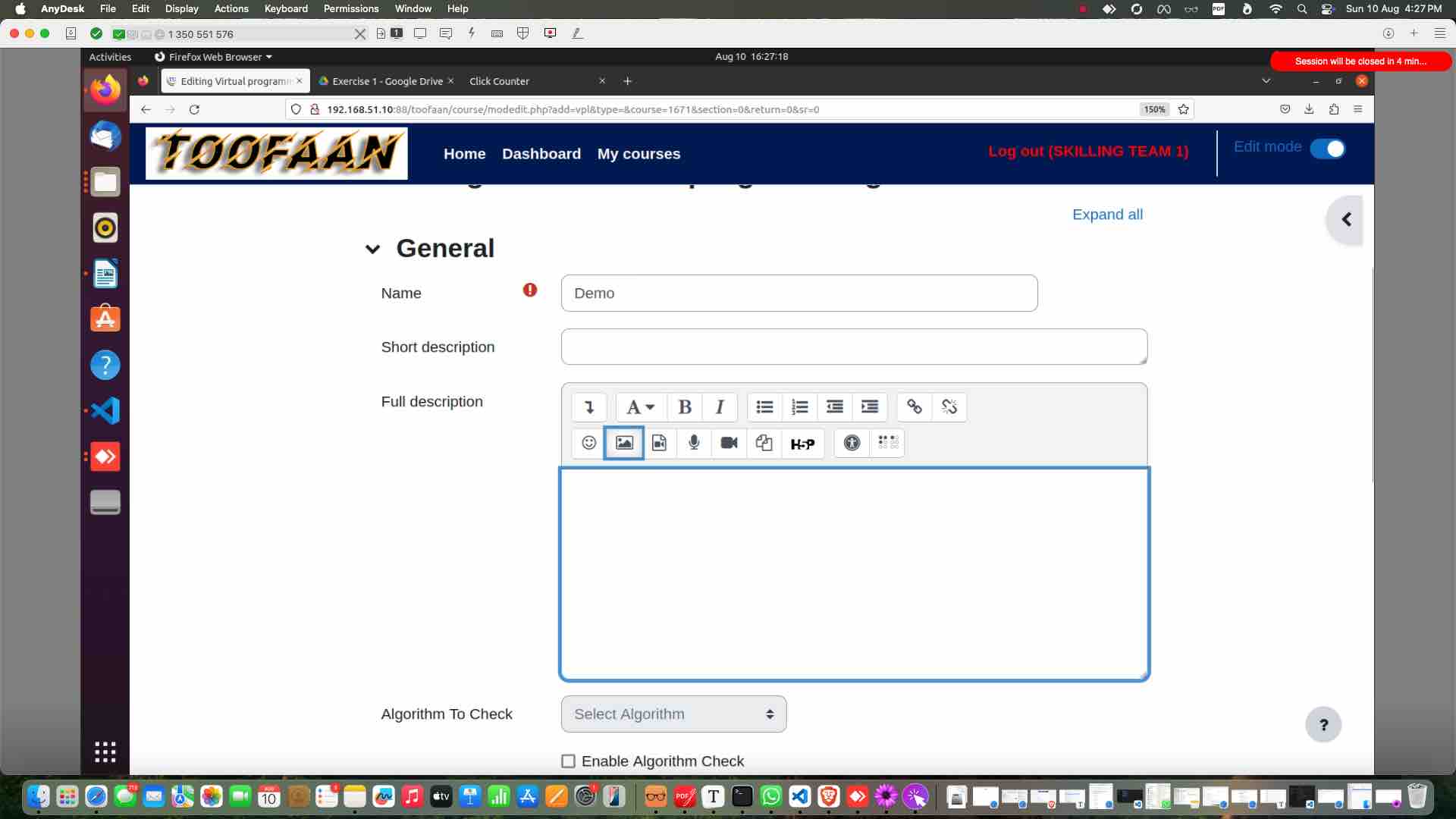
To upload image browse the directory
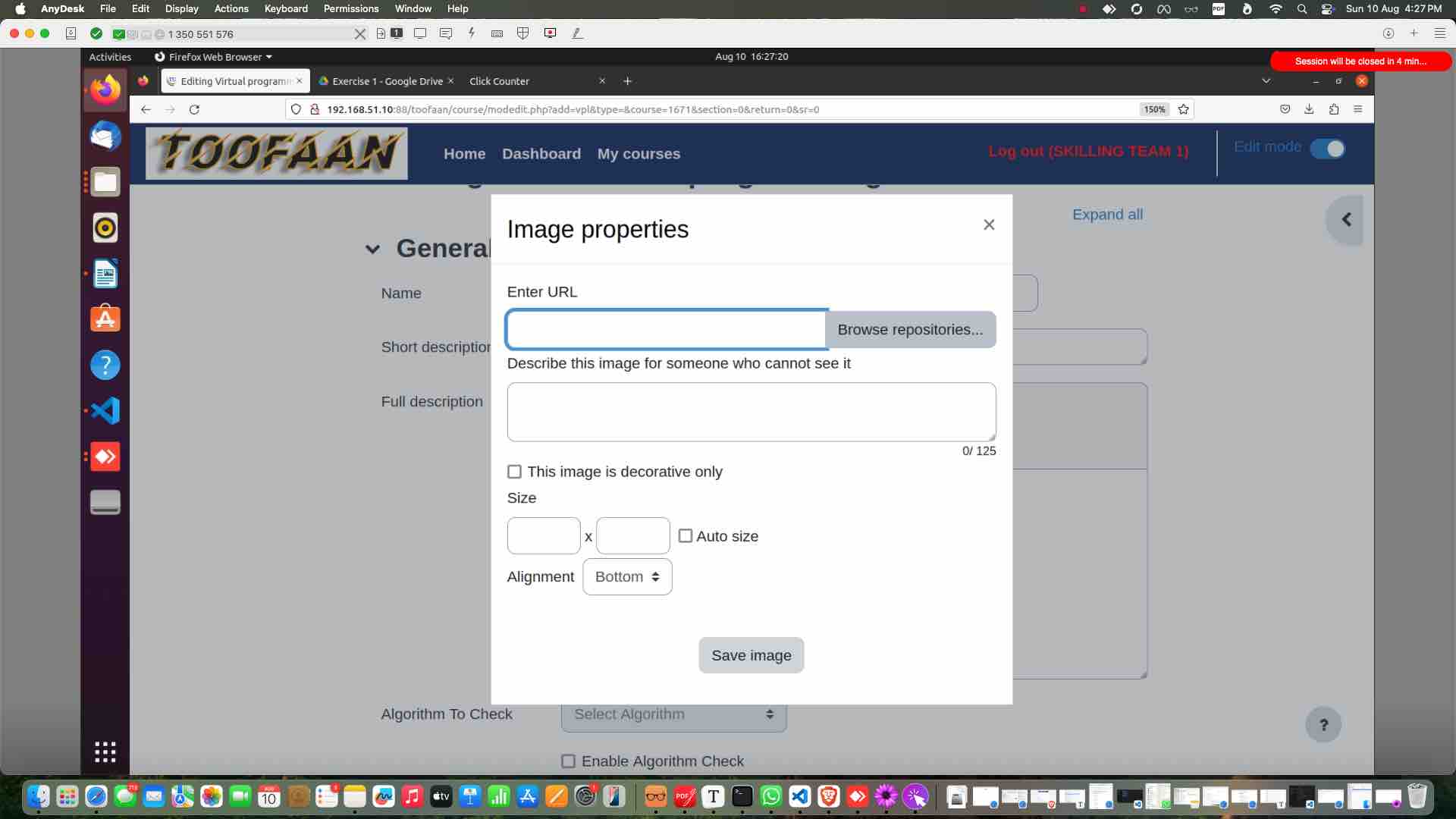
upload the image
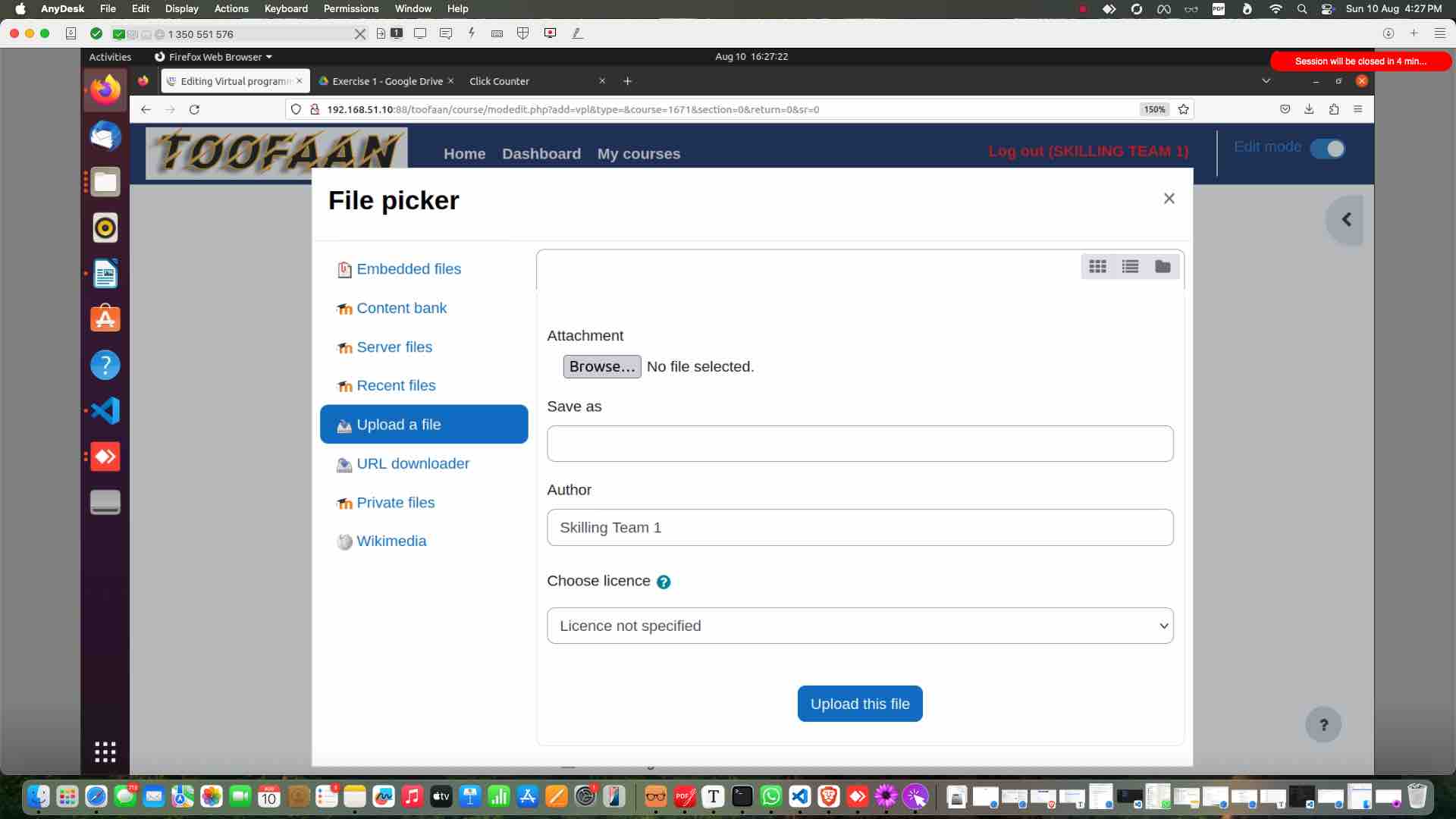
Select the exercise image to upload
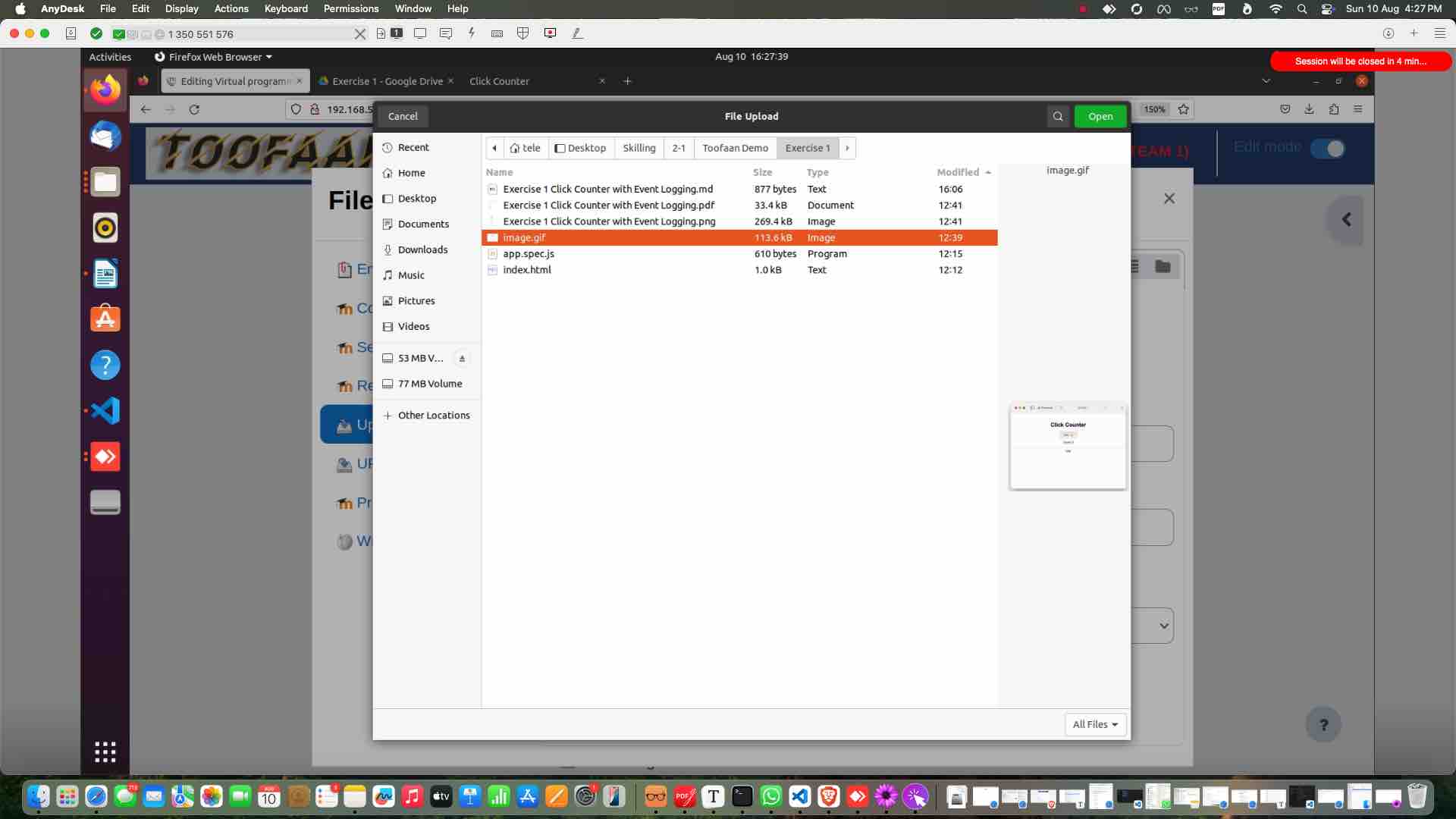
confirm the upload
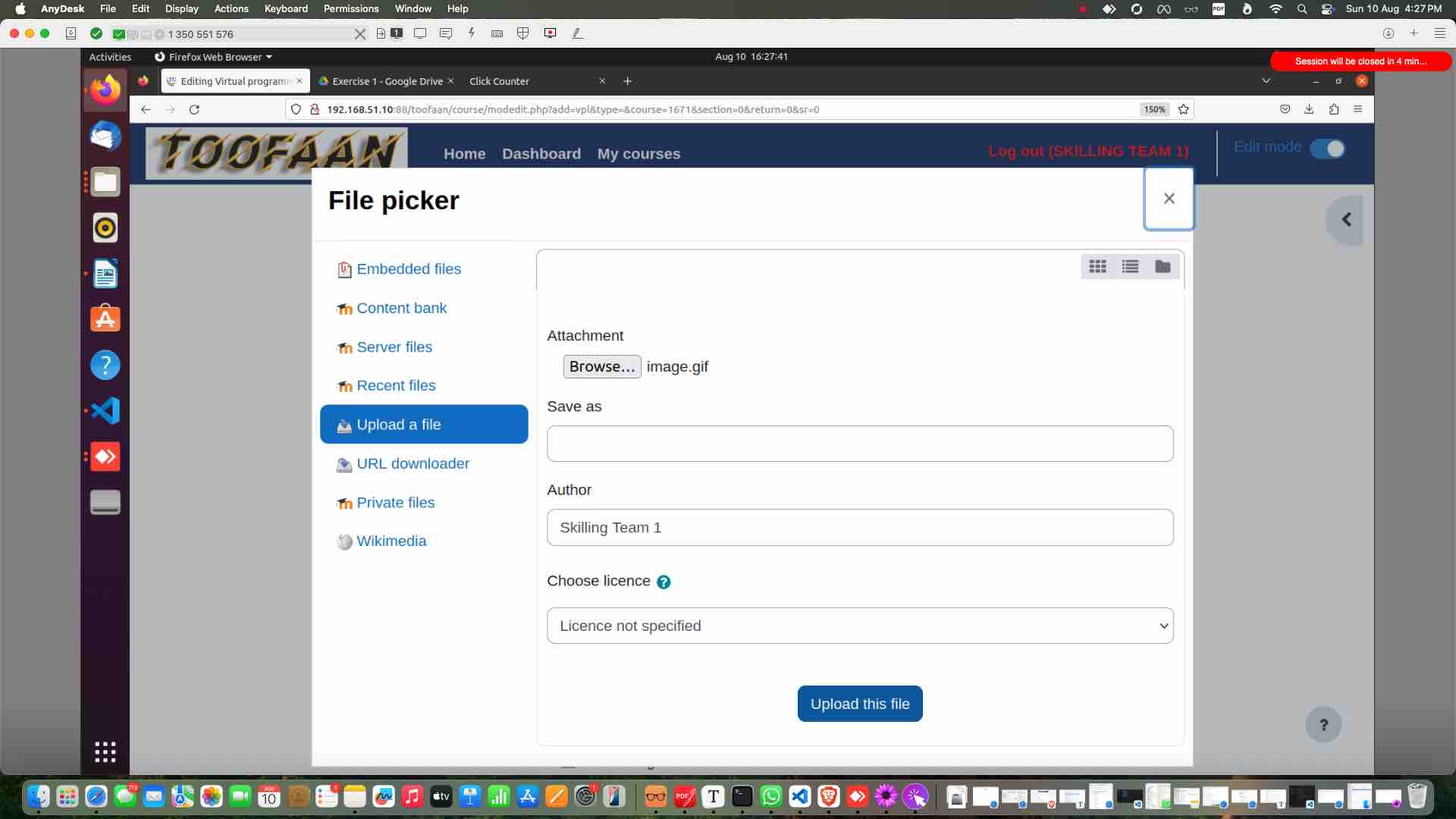
Give description
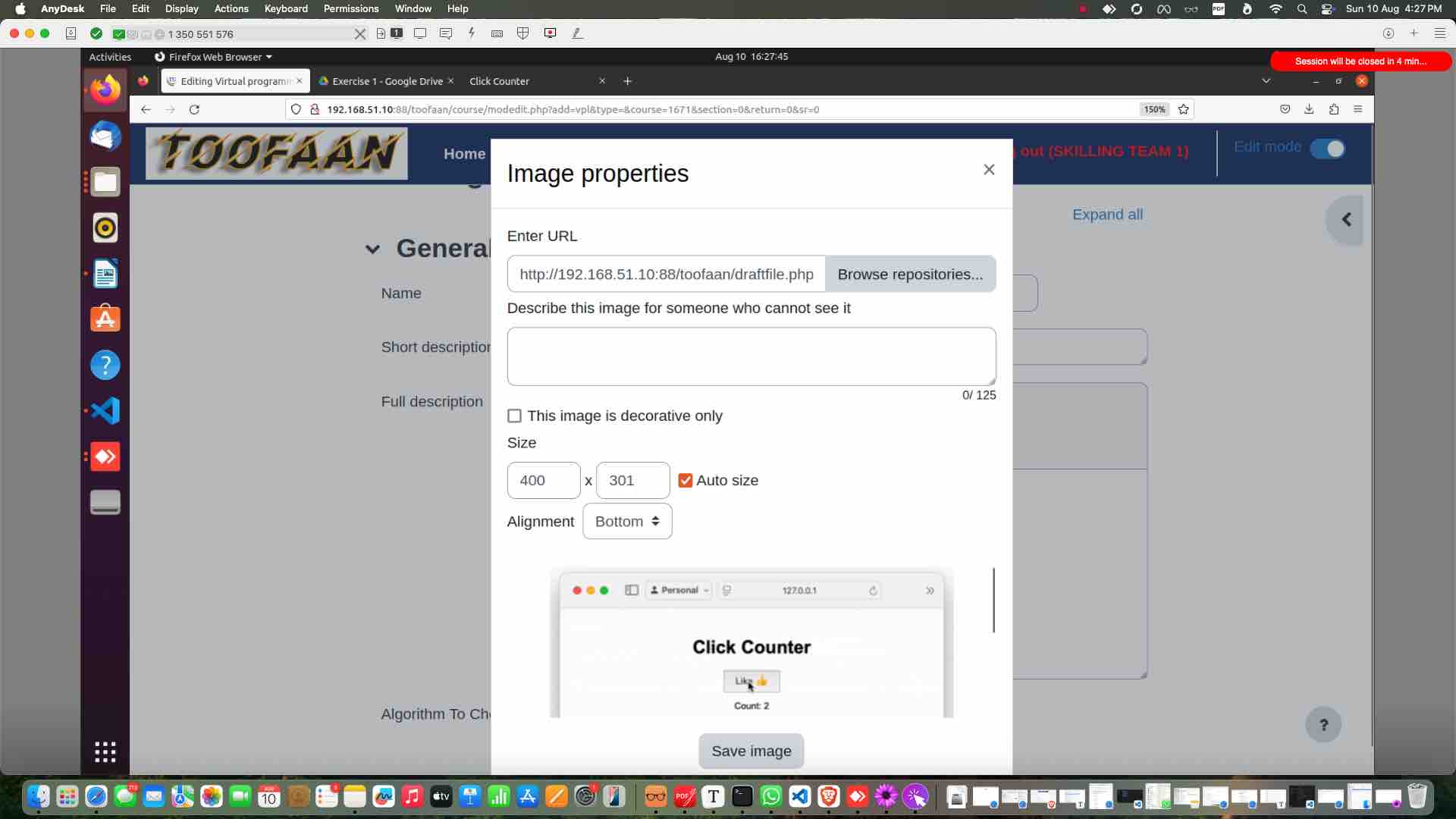
Save the image
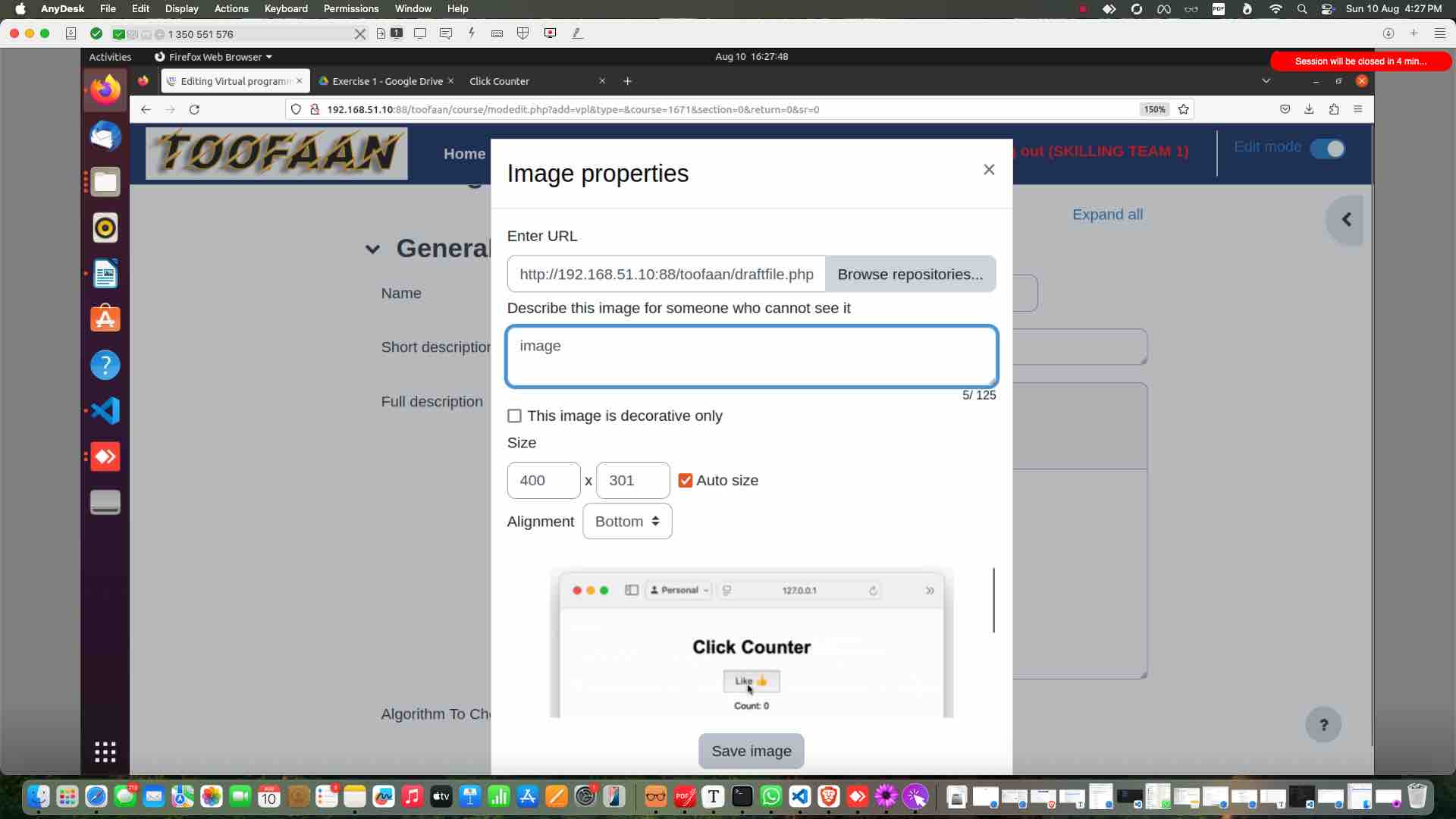
Click "Save and display"
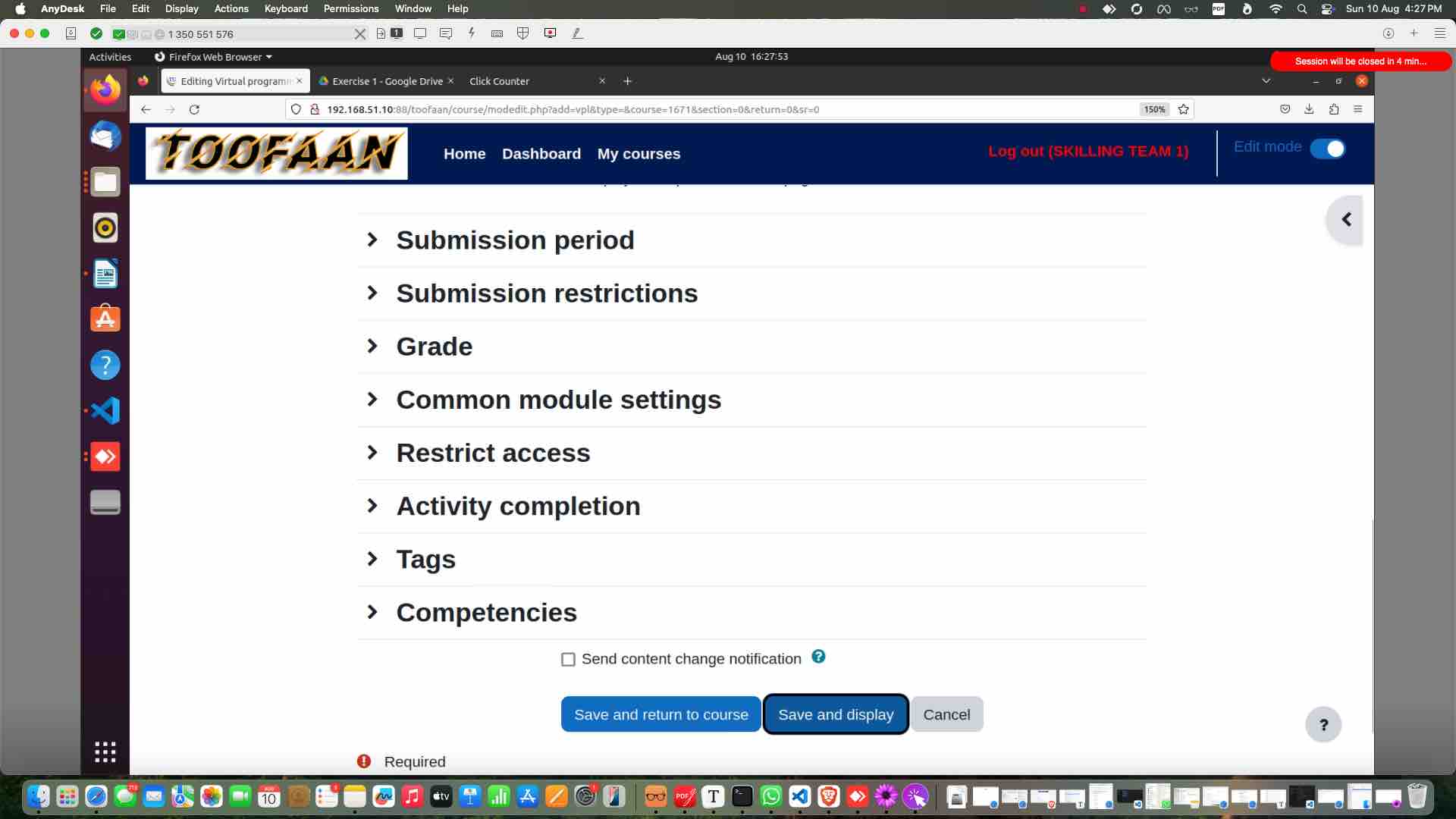
Click on "more"
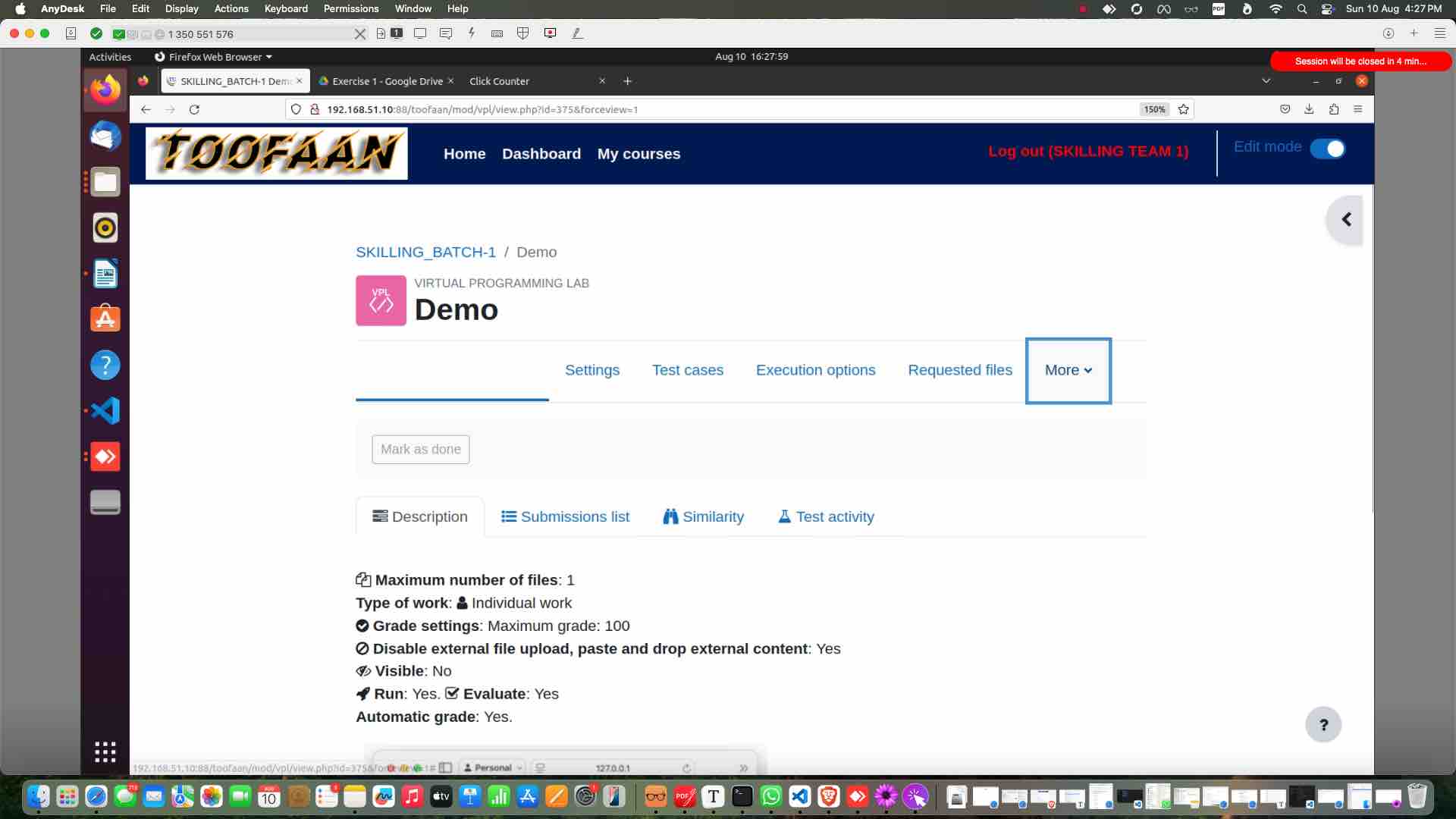
Select execution files
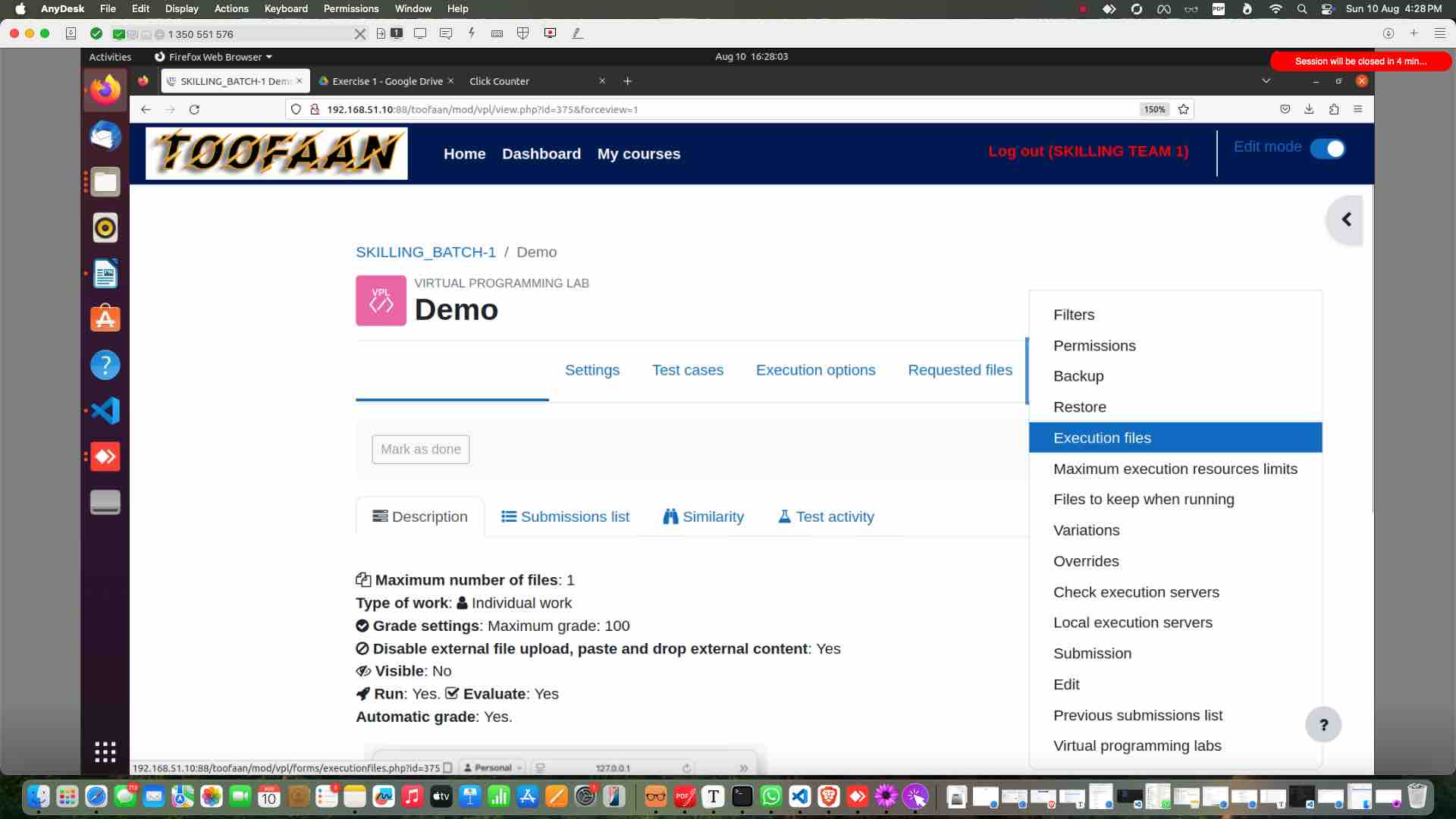
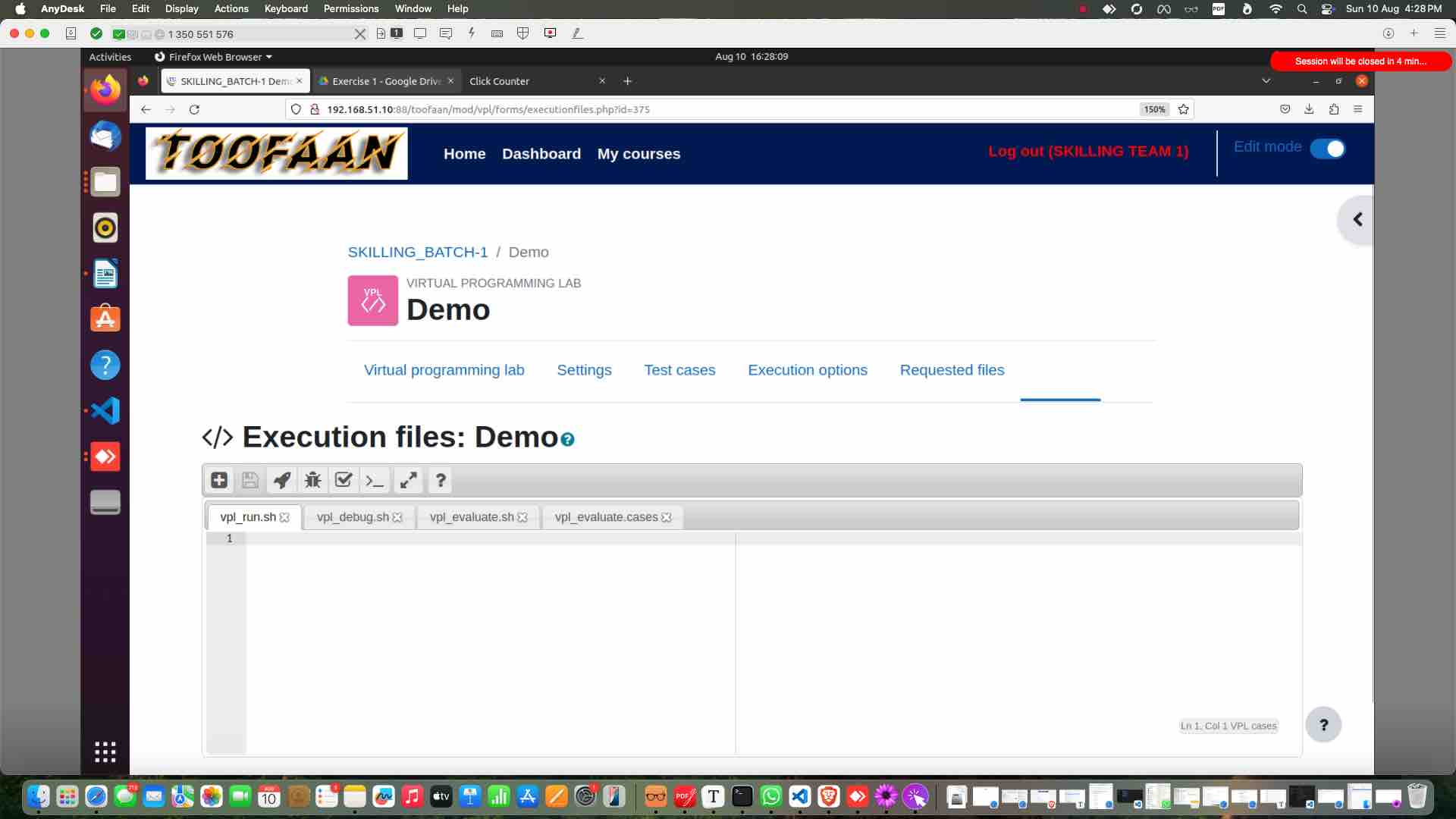
Update "vpl_run.sh" and "vpl_evulate.sh" file from the drive
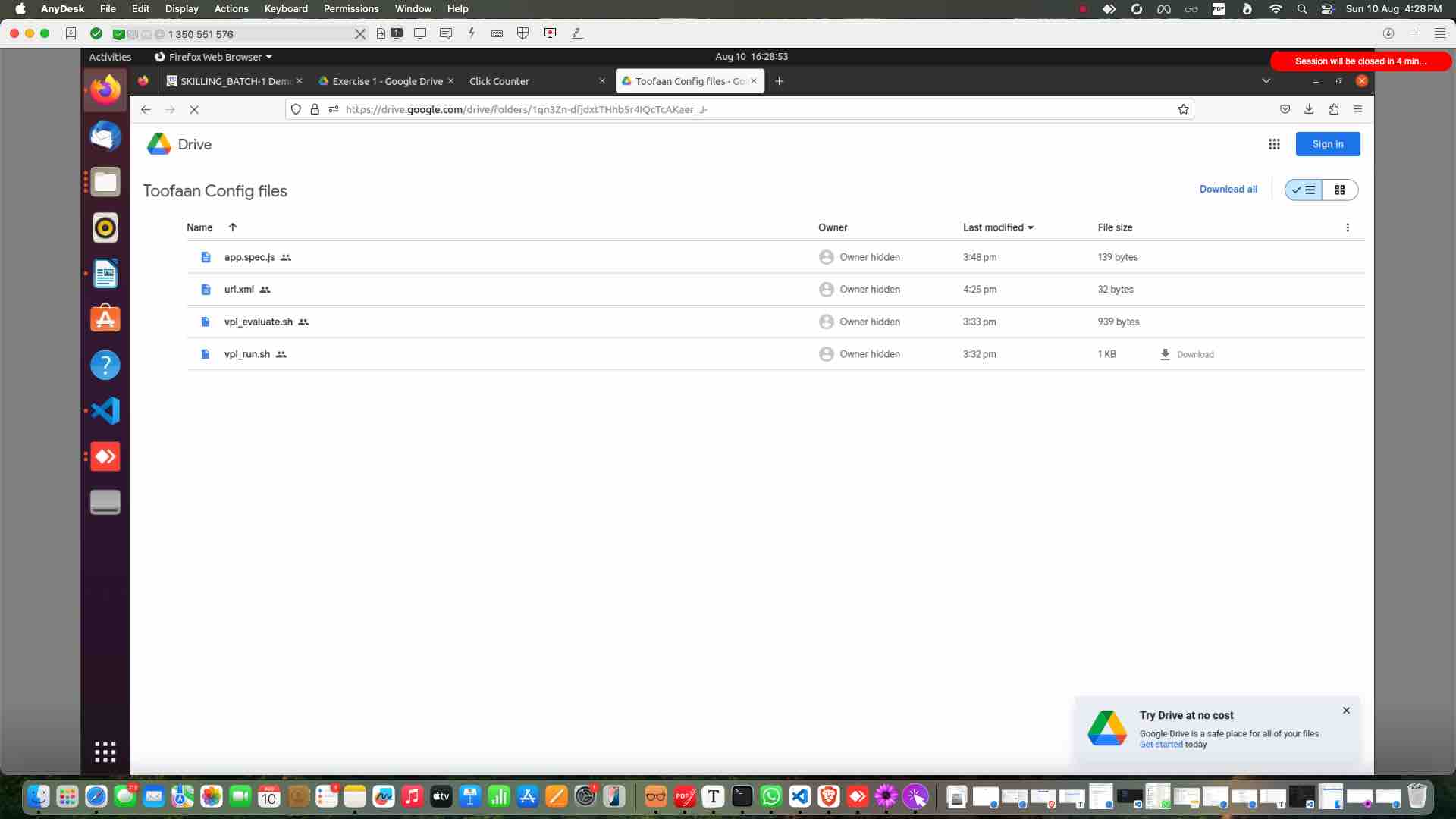
Open the drive
Open "vpl_run.sh" file
Copy the file content
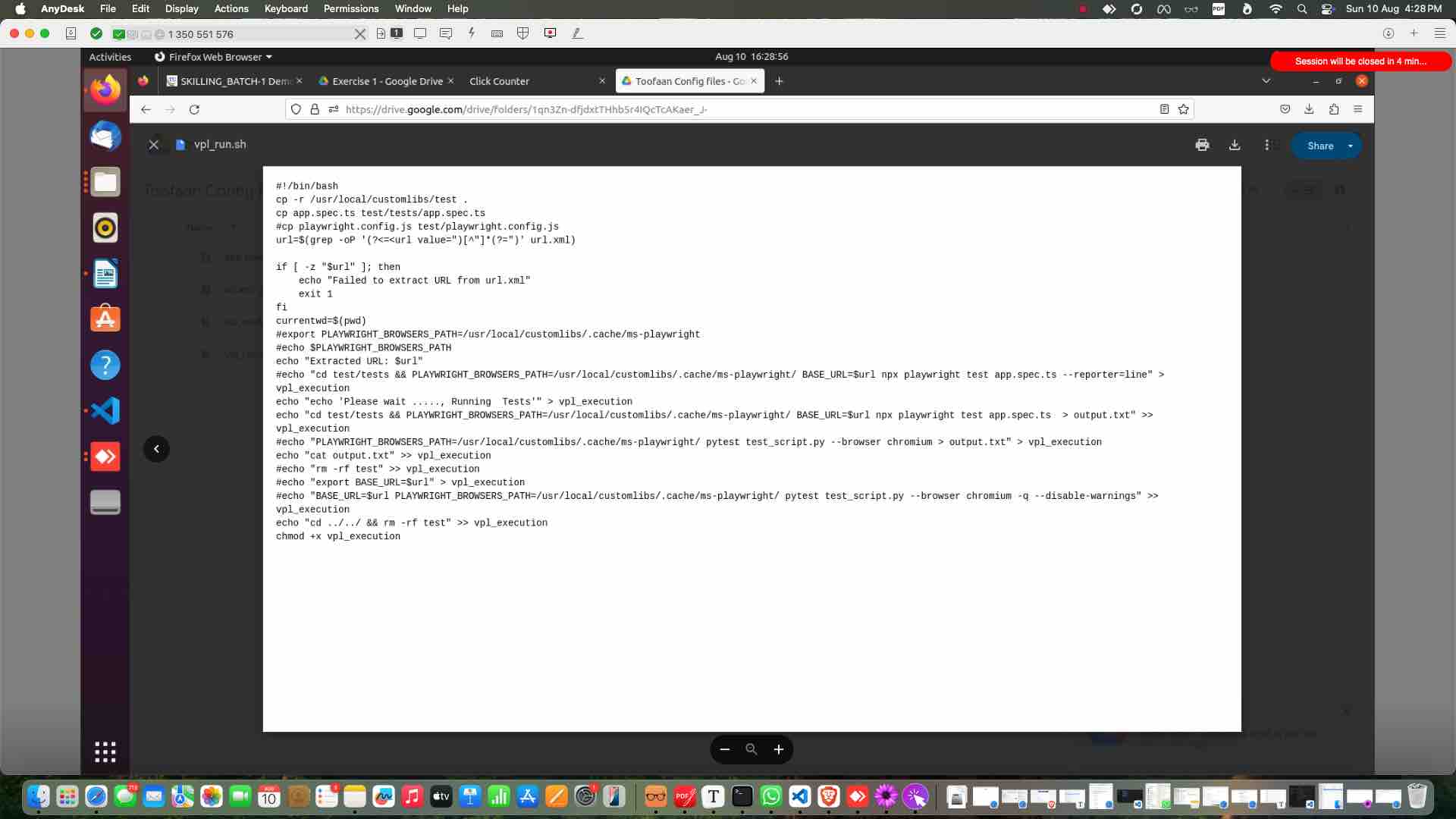
Past it in Toofaan.
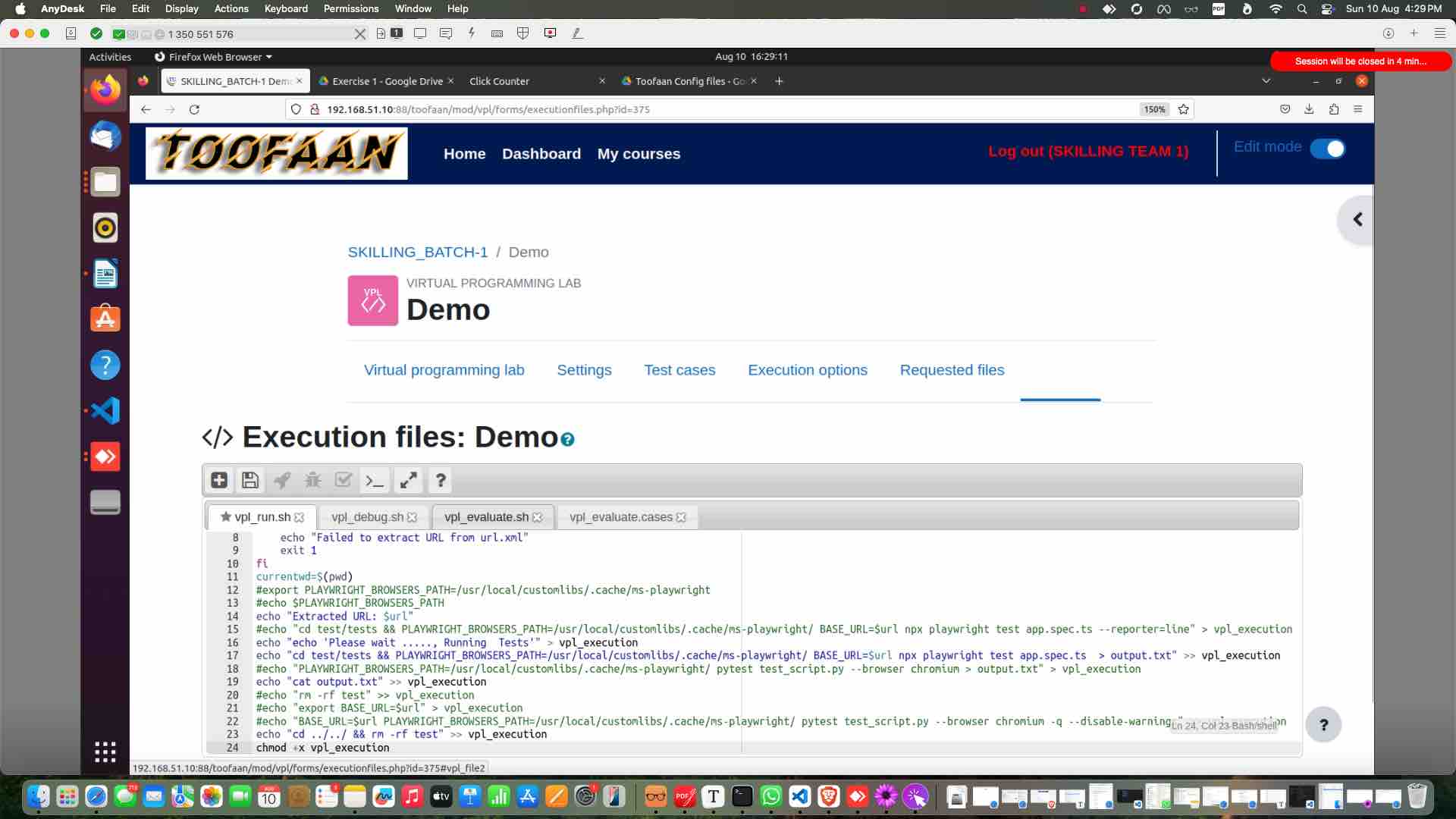
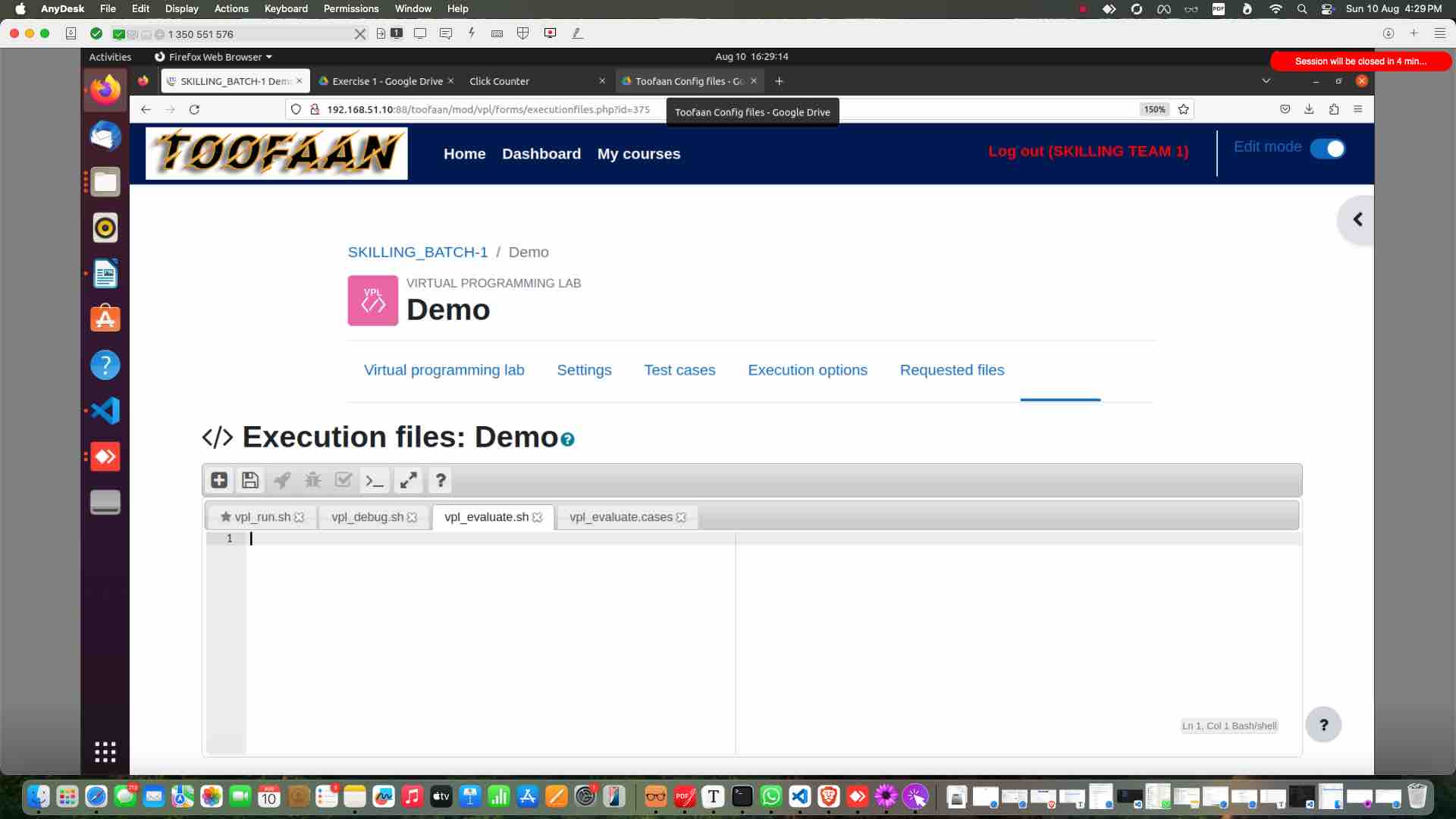
Click on "vpl_evaluate.sh" tab
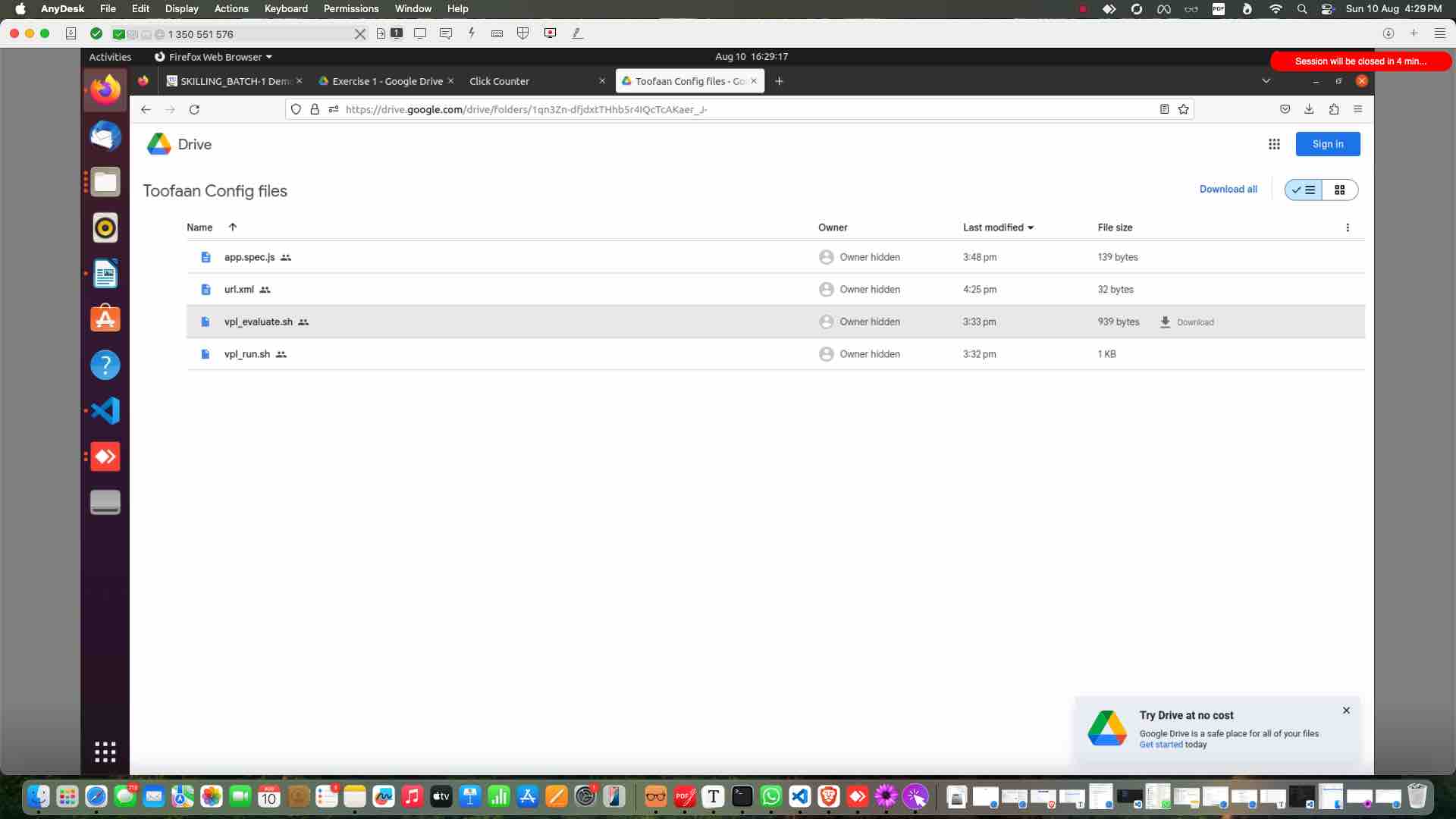
Open vpl_evaluate.sh on the drive
Copy the content
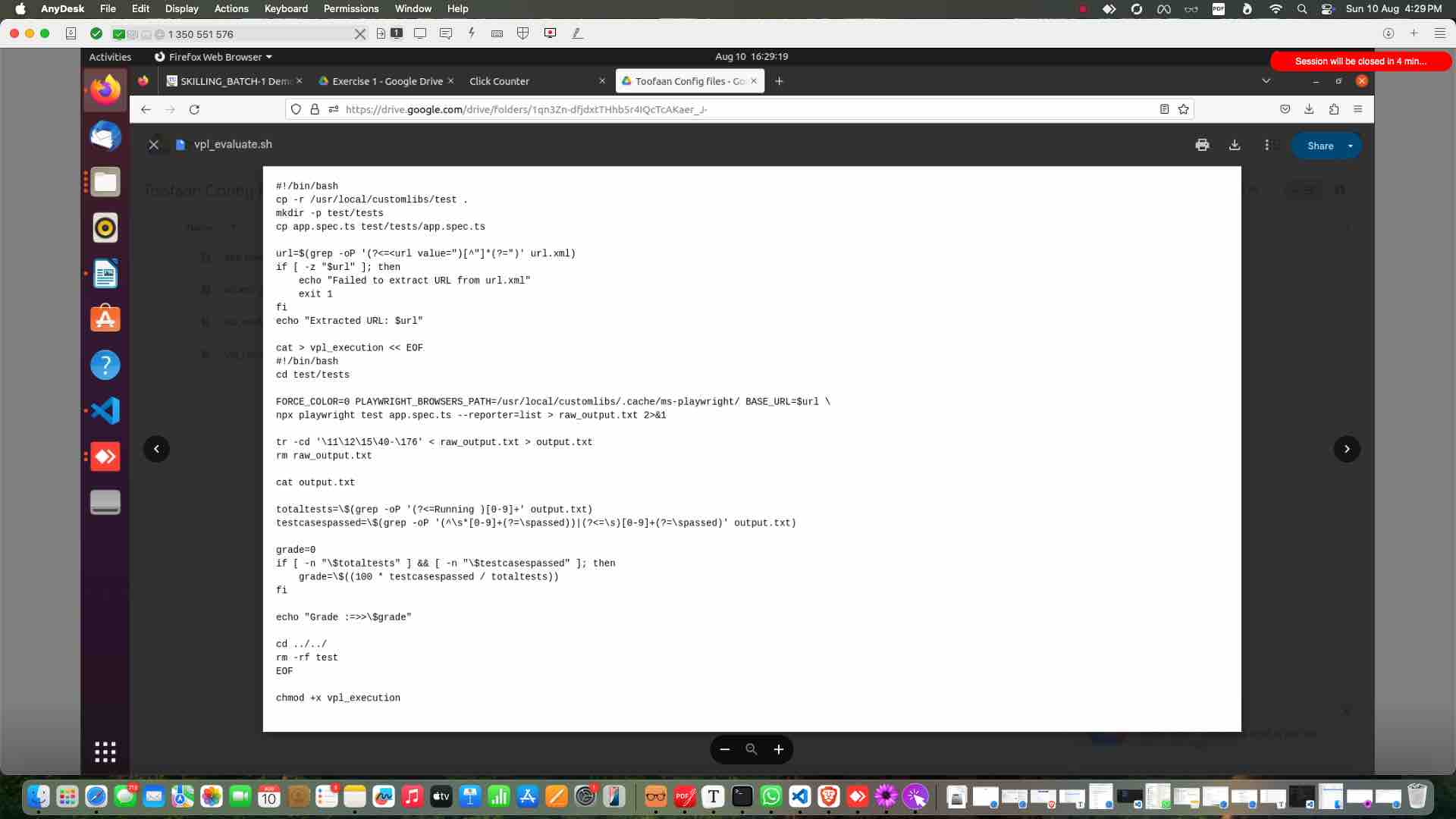
Past it in Toofaan
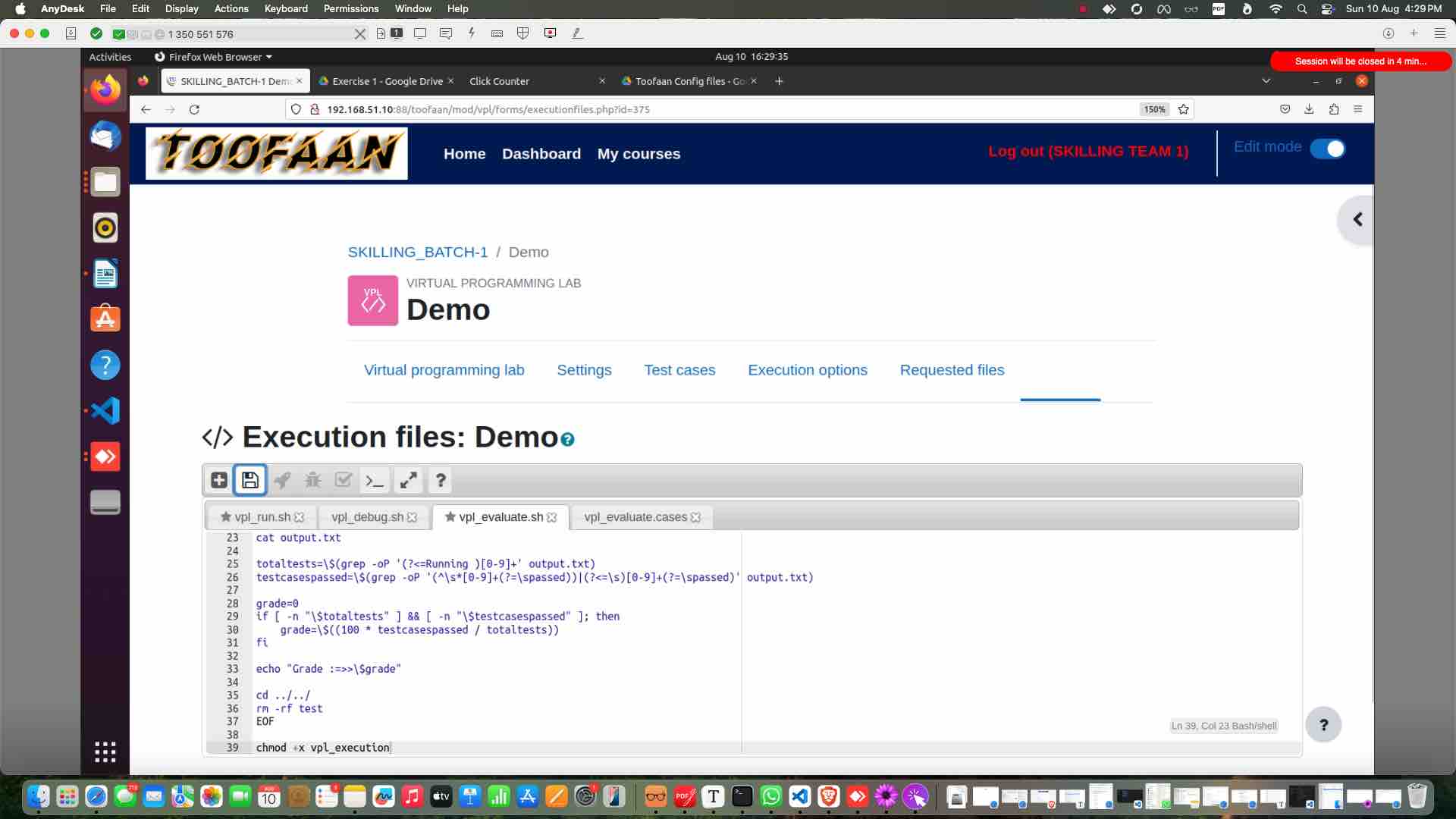
Click on save
Create a "New File" Click here
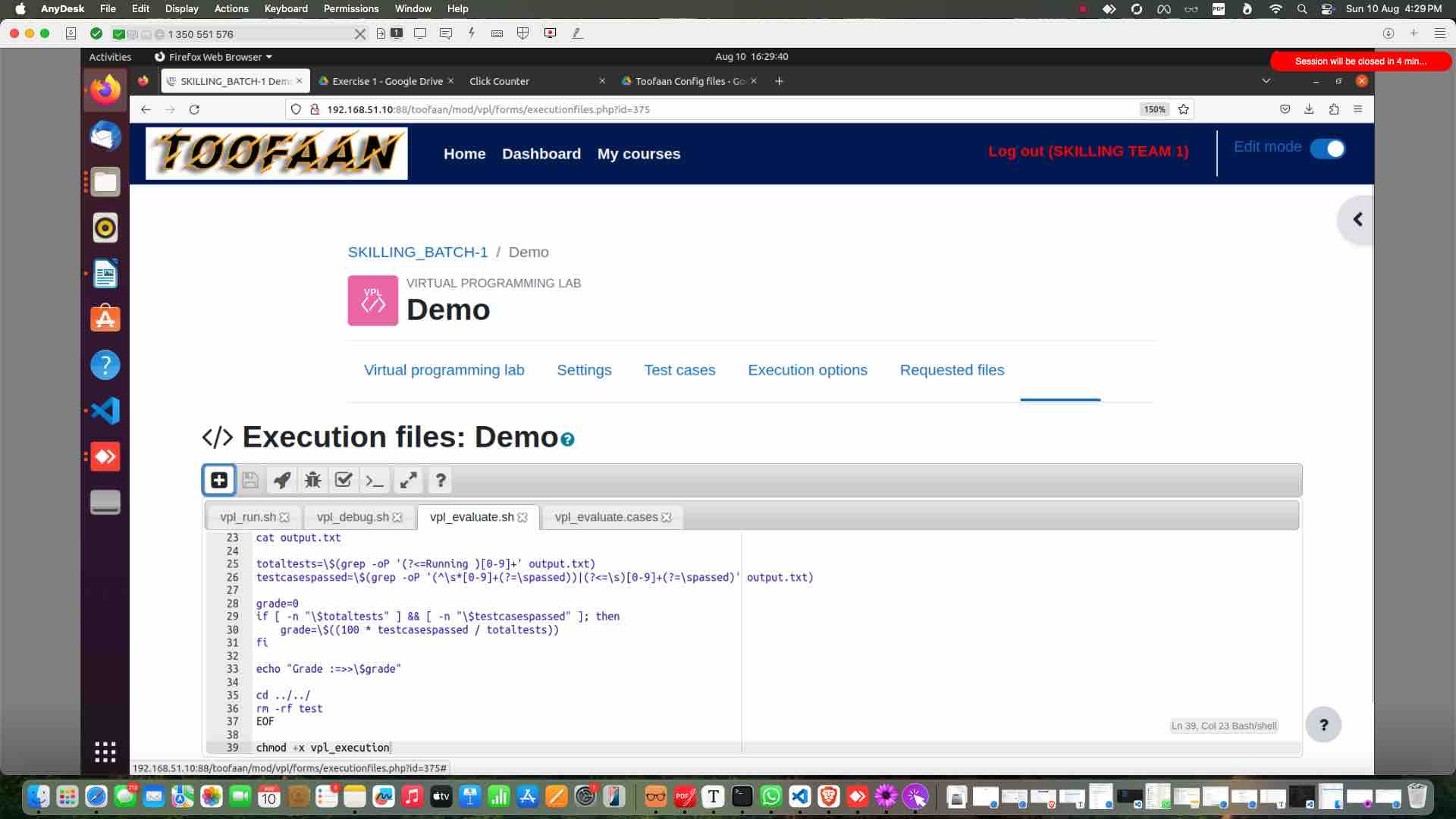
Once expands Click here to create a new file