logo

Toofaan(Manager Guide) Part 2

1

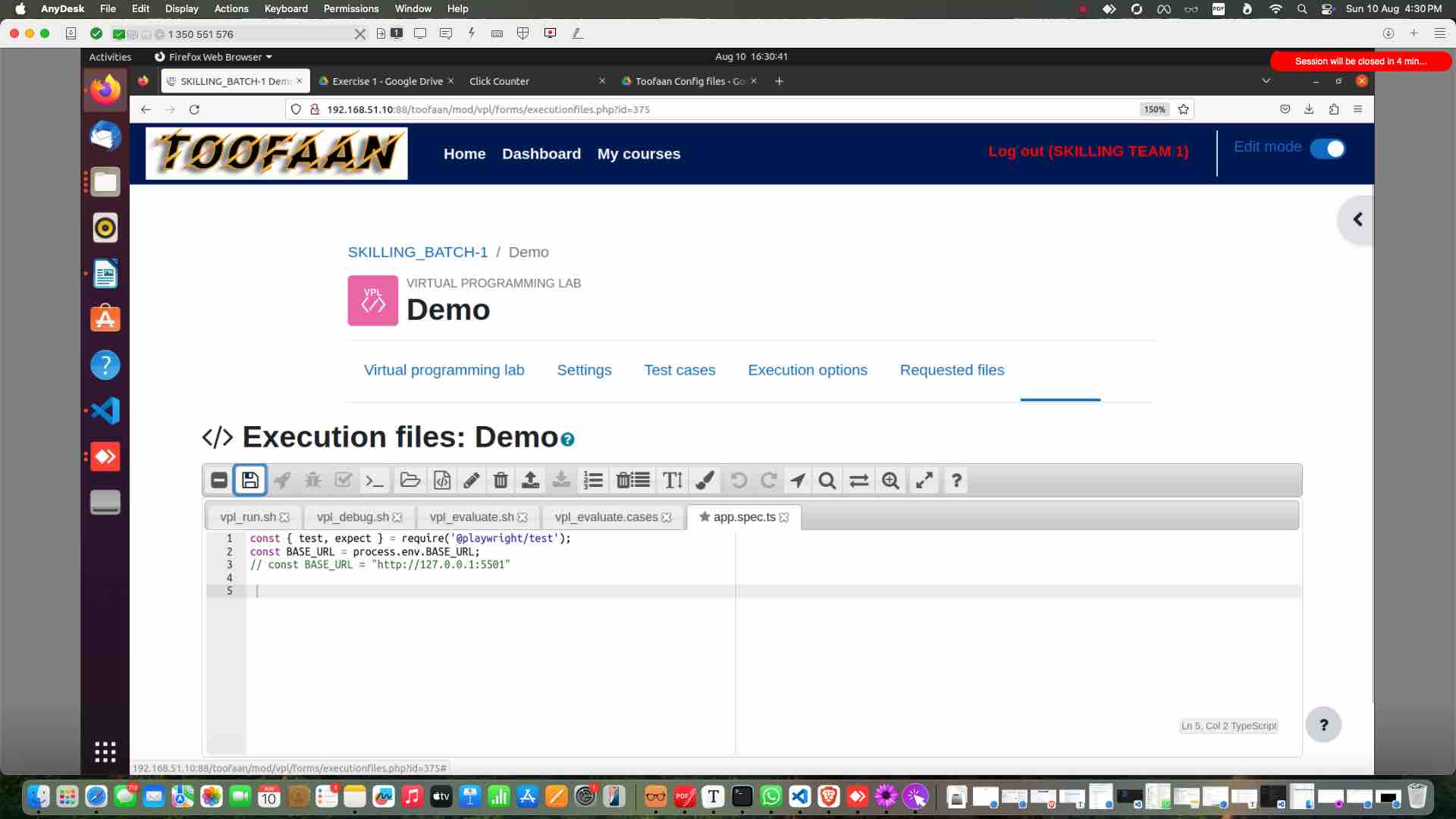
Name the new file as "app.spec.ts" and click "OK"
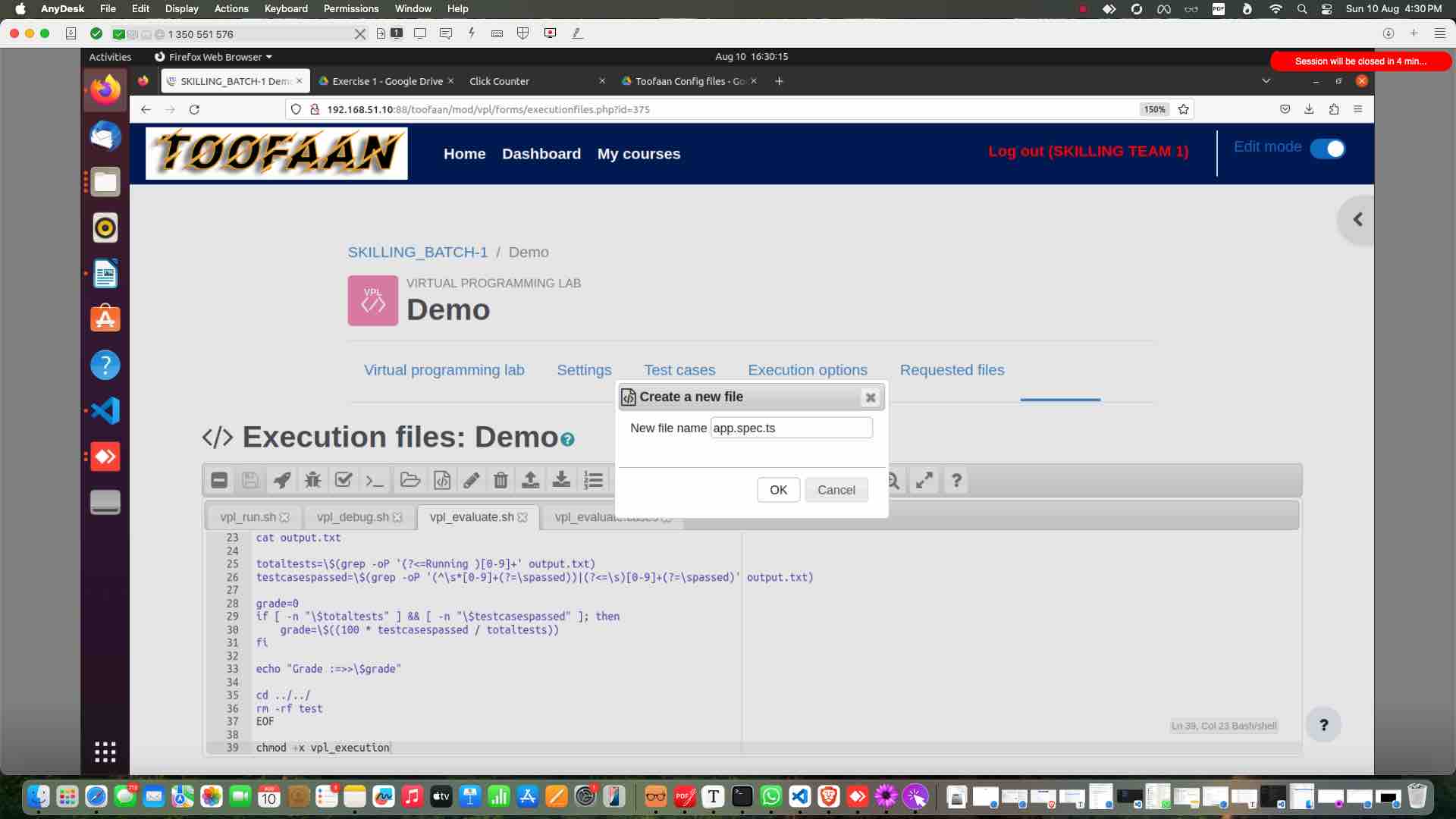
Name the new file as "app.spec.ts"
and click "OK"
2

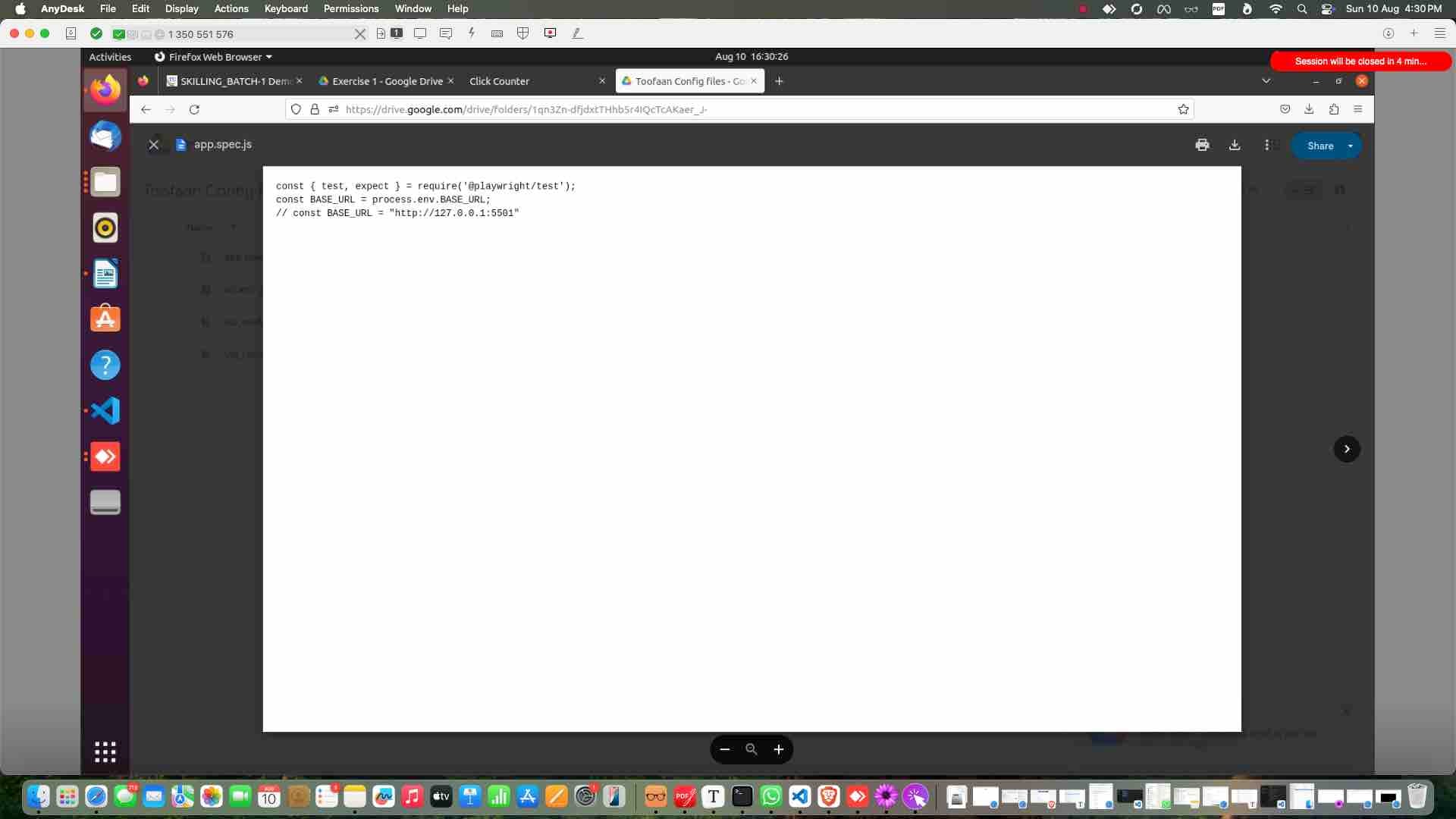
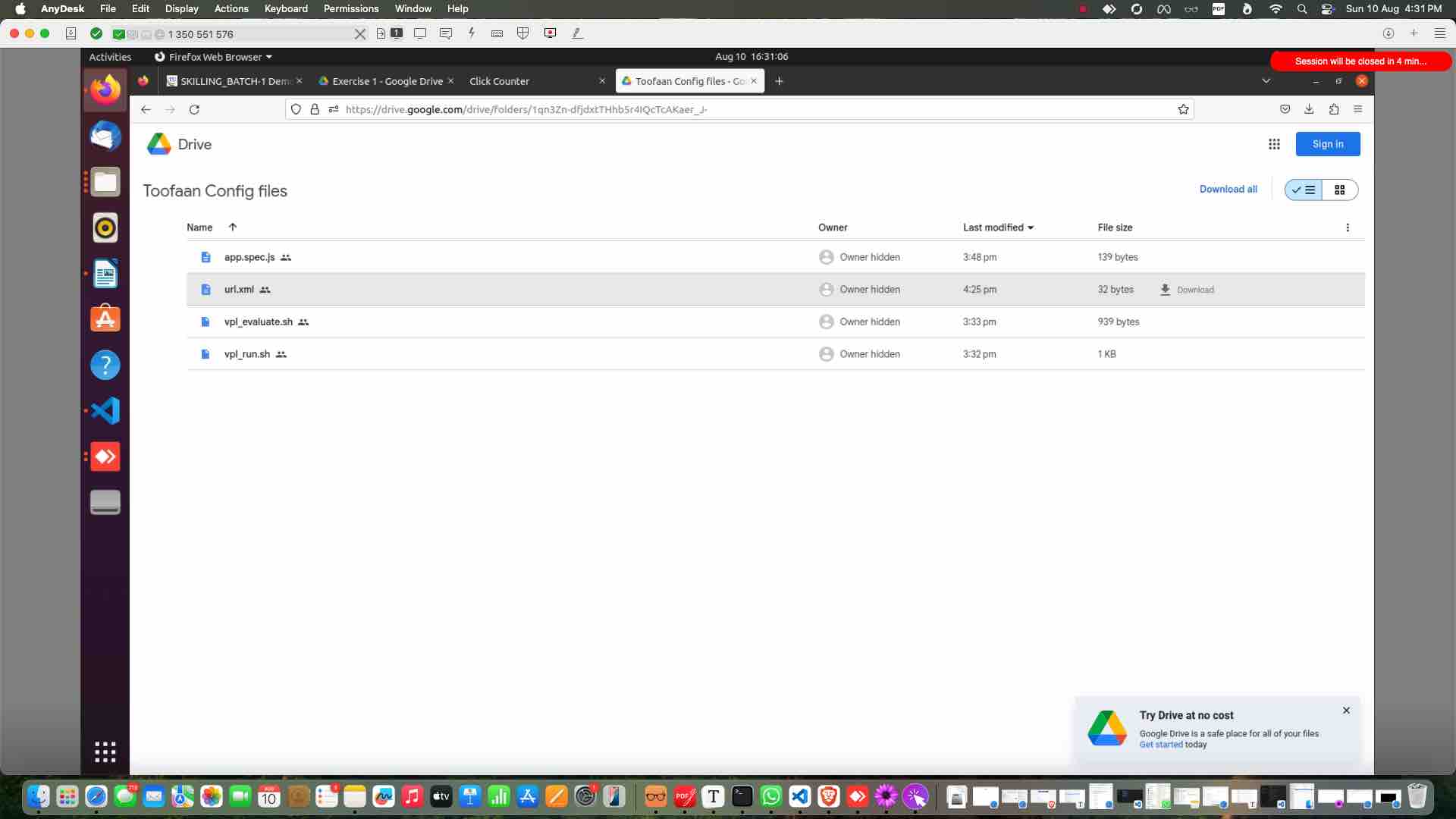
Open the drive and select app.spec.js file
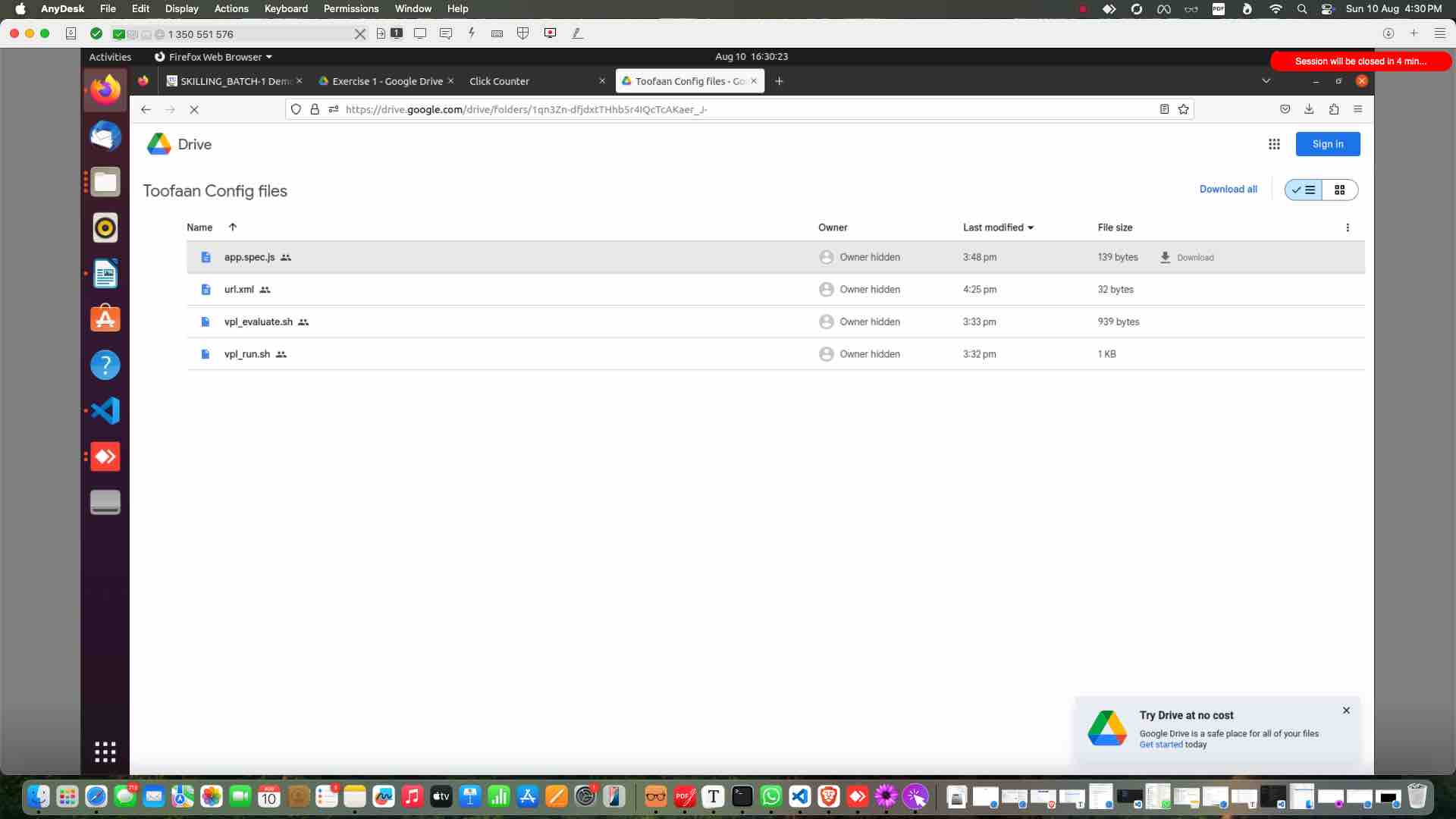
Open the drive and select app.spec.js file
3

Copy the content

Copy the content
4

Past it in toofaan

Past it in toofaan
5

Save it

Save it
6

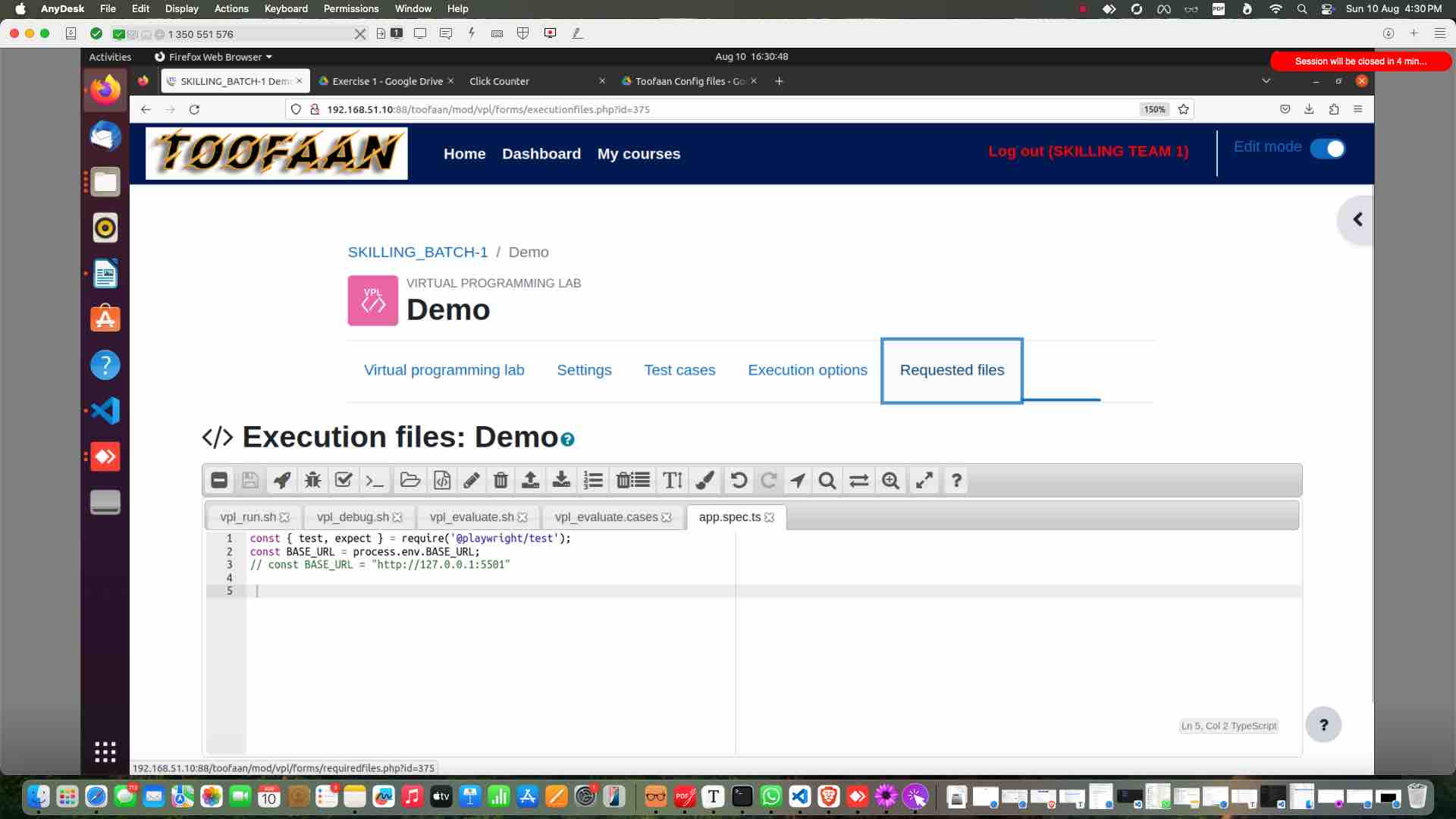
Click on "Requested files"

Click on  "Requested files"
7

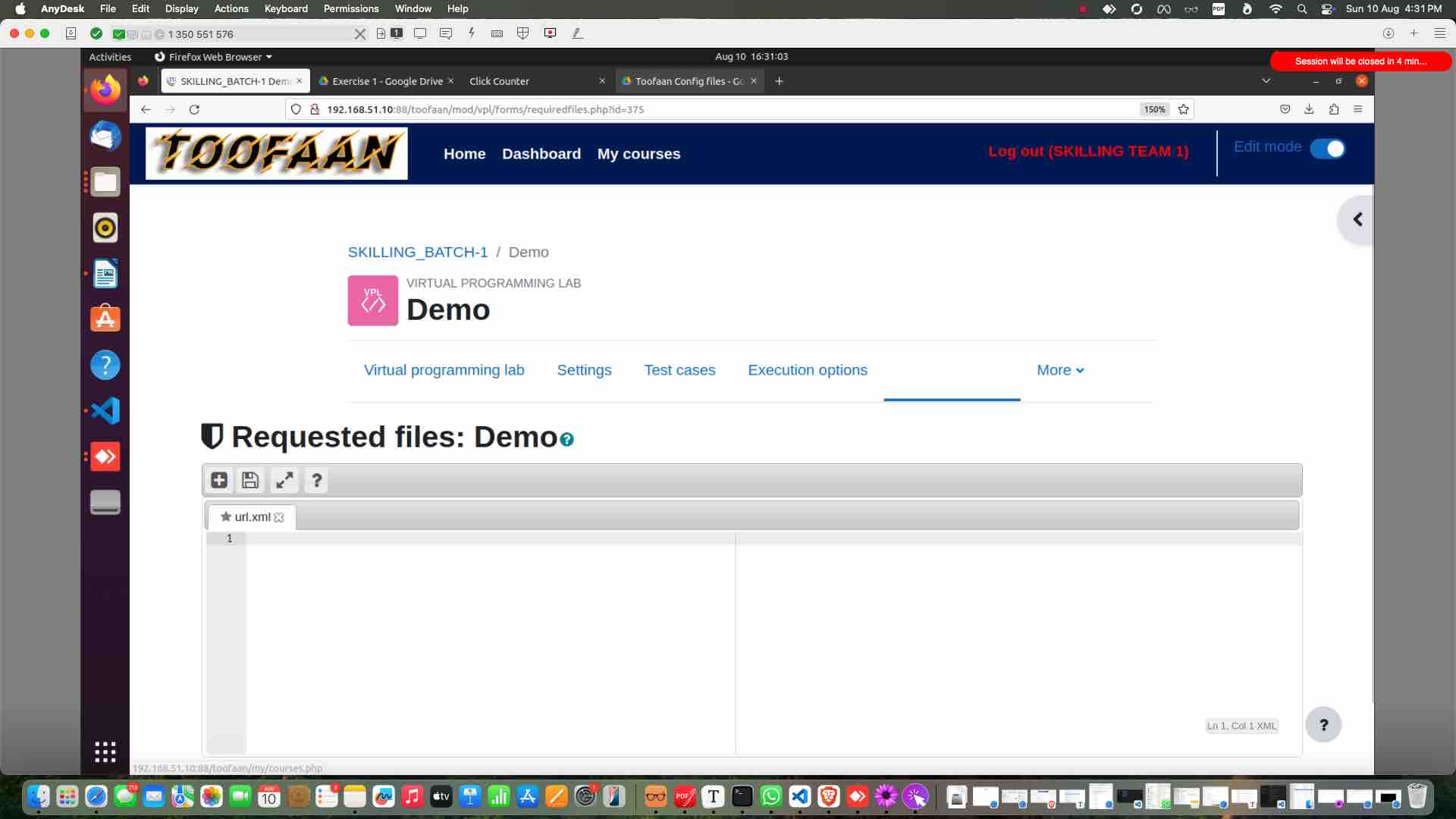
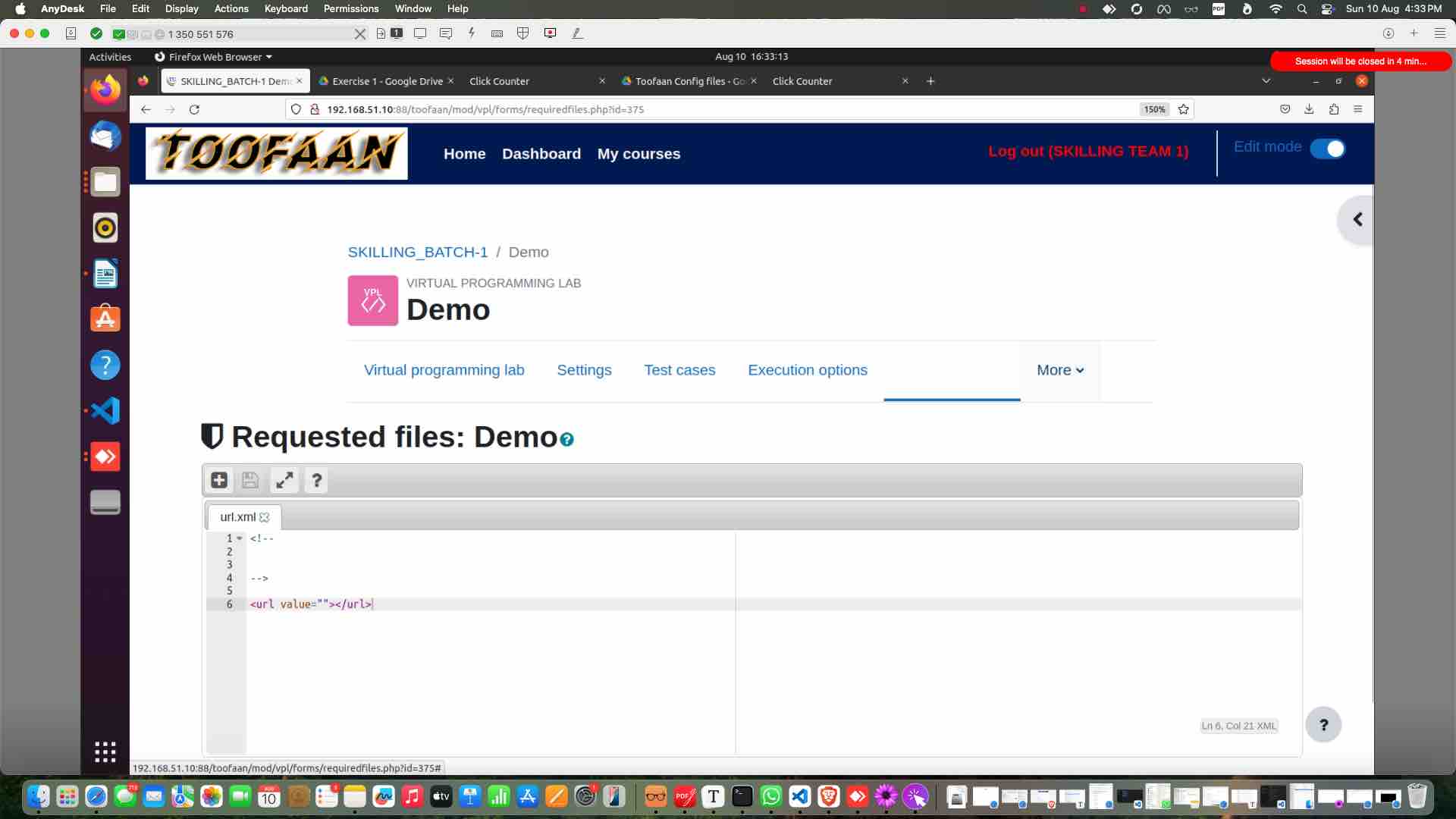
Create a new file and name it "url.xml" and click ok
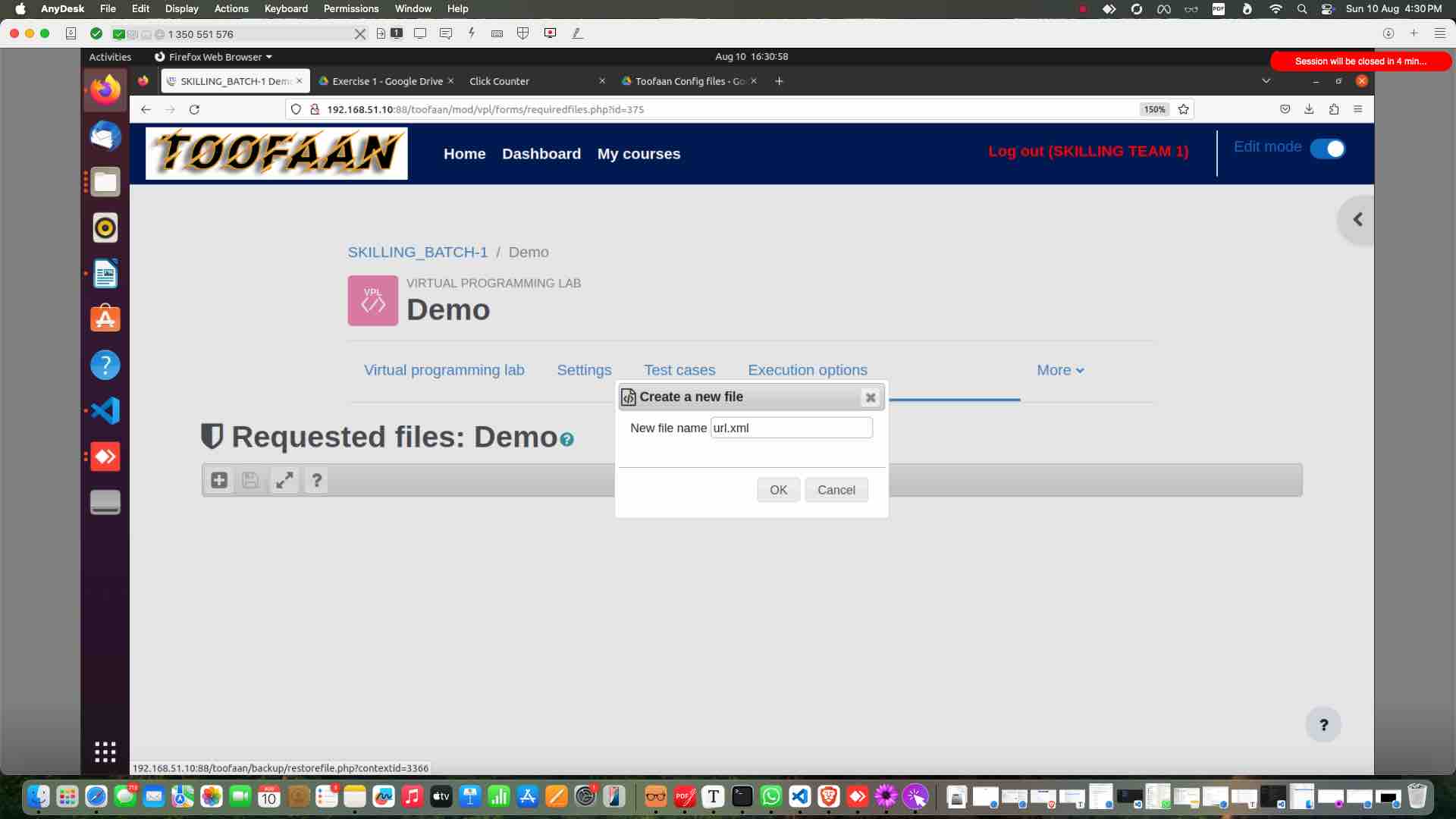
Create a new file and name it "url.xml" and click ok
8

Update this file

Update this file
9

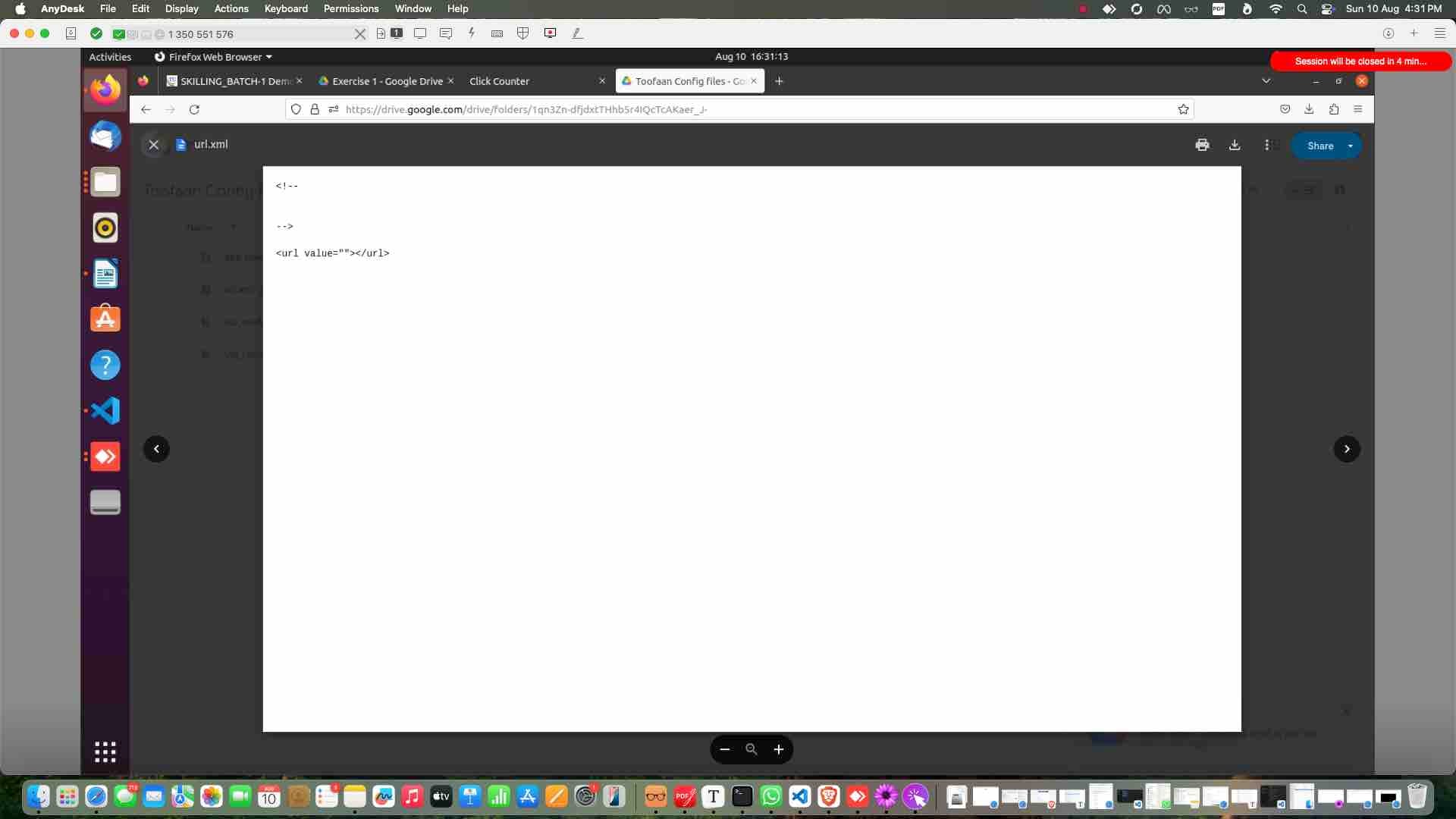
Open "url.xml" from the drive

Open "url.xml" from the drive
10

Copy the content

Copy the content
11

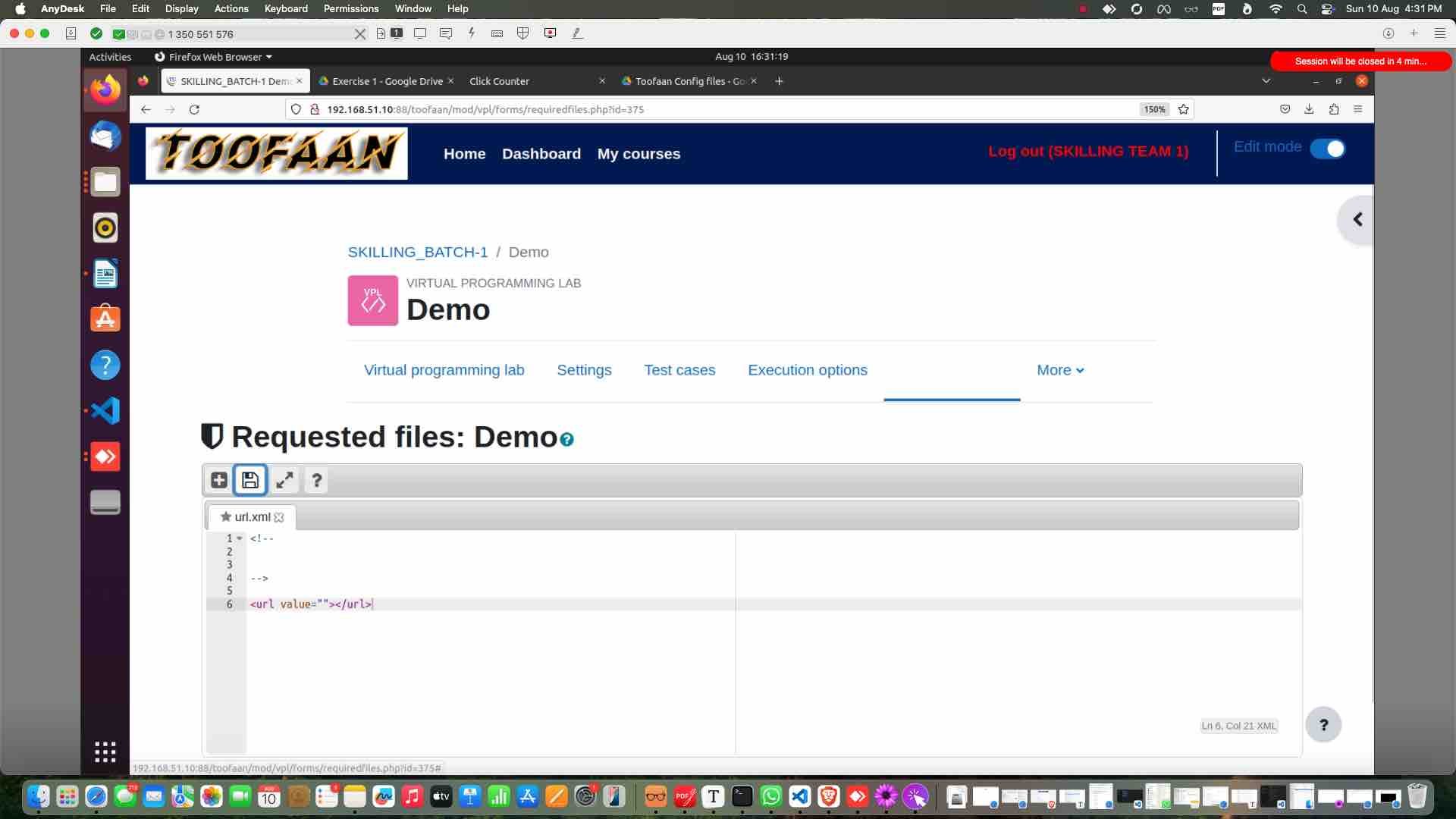
Past it in toofaan

Past it in toofaan
12

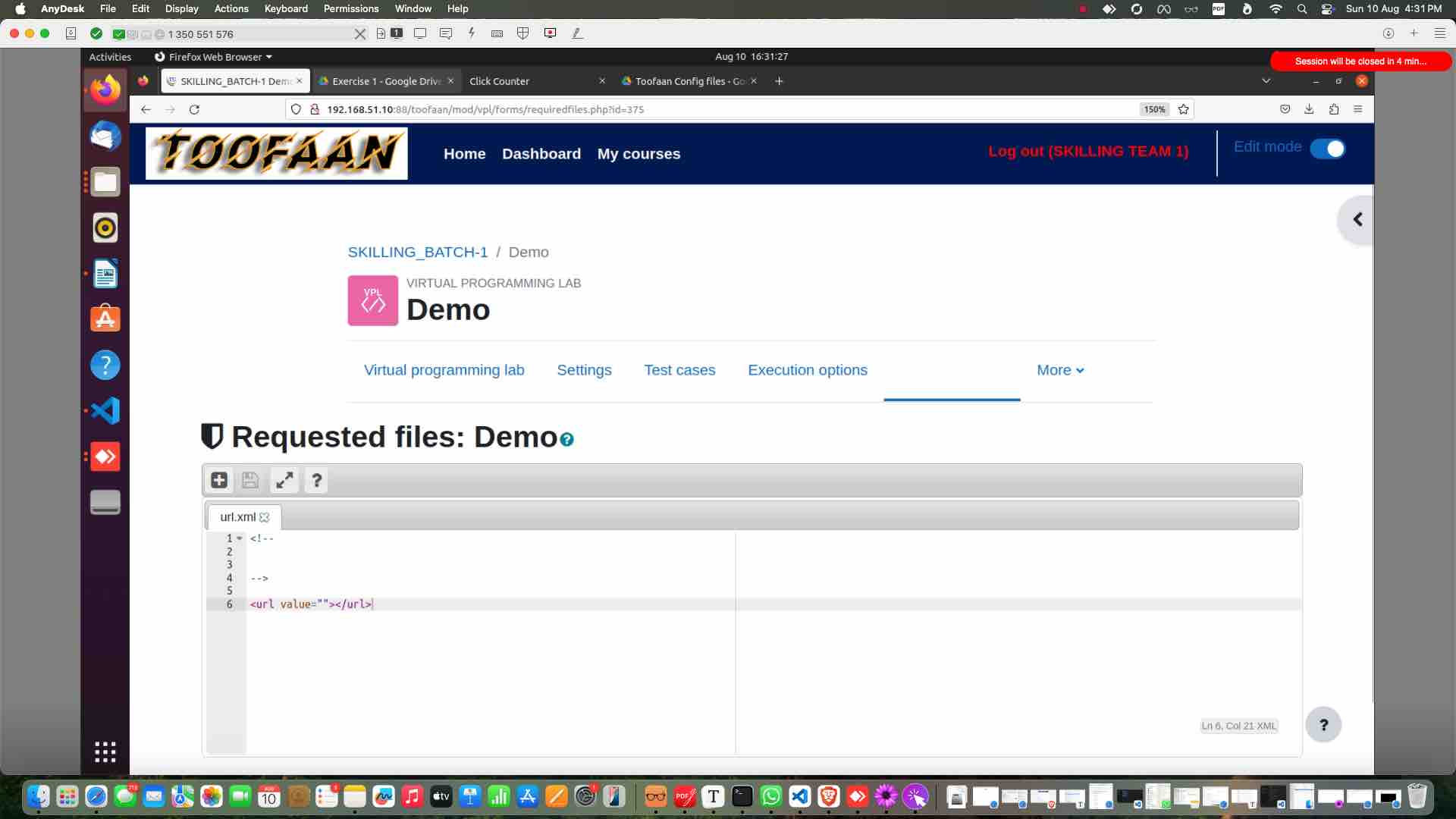
Save it

Save it
13

Open the exercise drive

Open the exercise drive
14

Download the exercise in local machine fro google drive
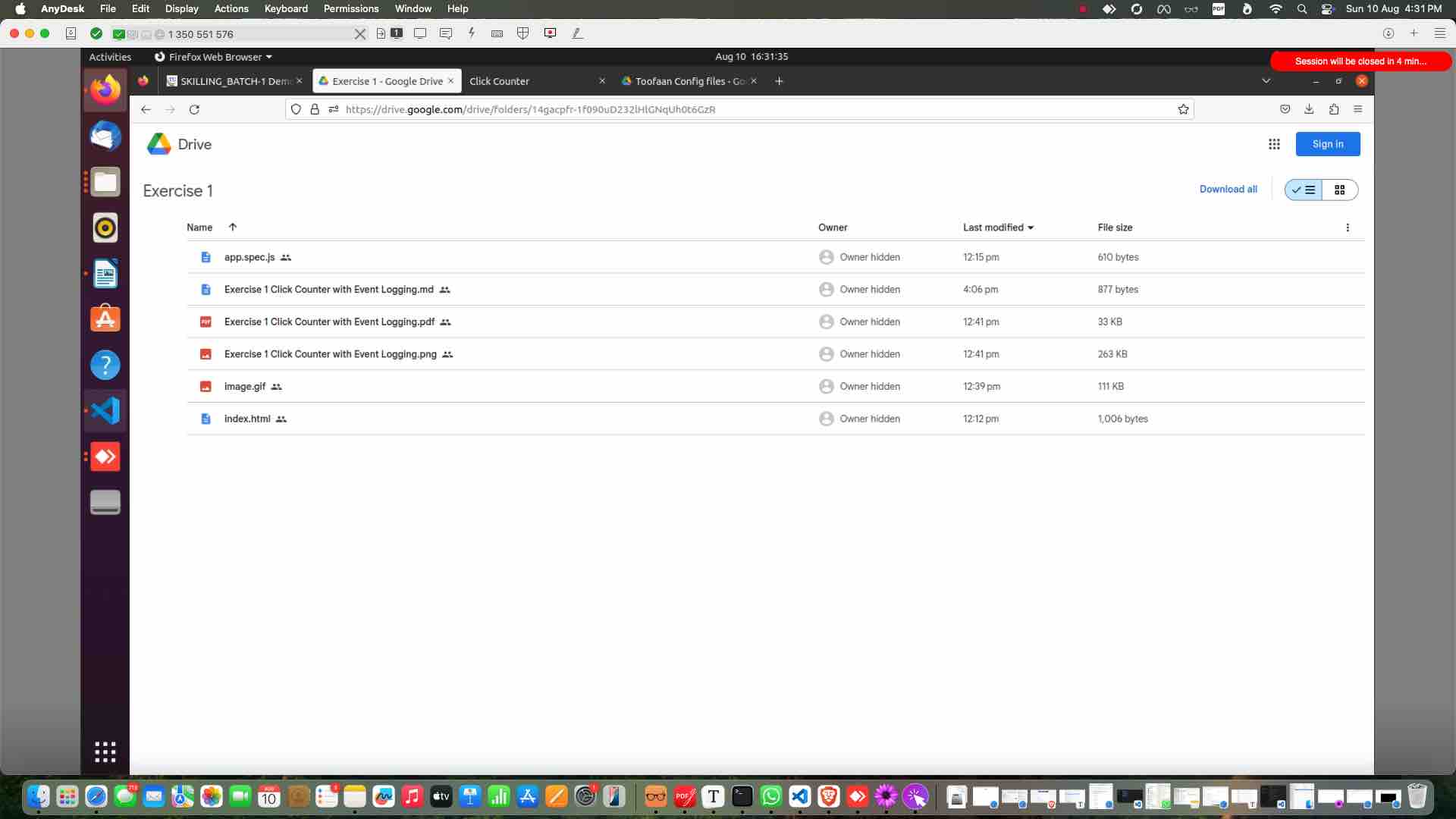
Download the exercise in local machine fro google drive
15

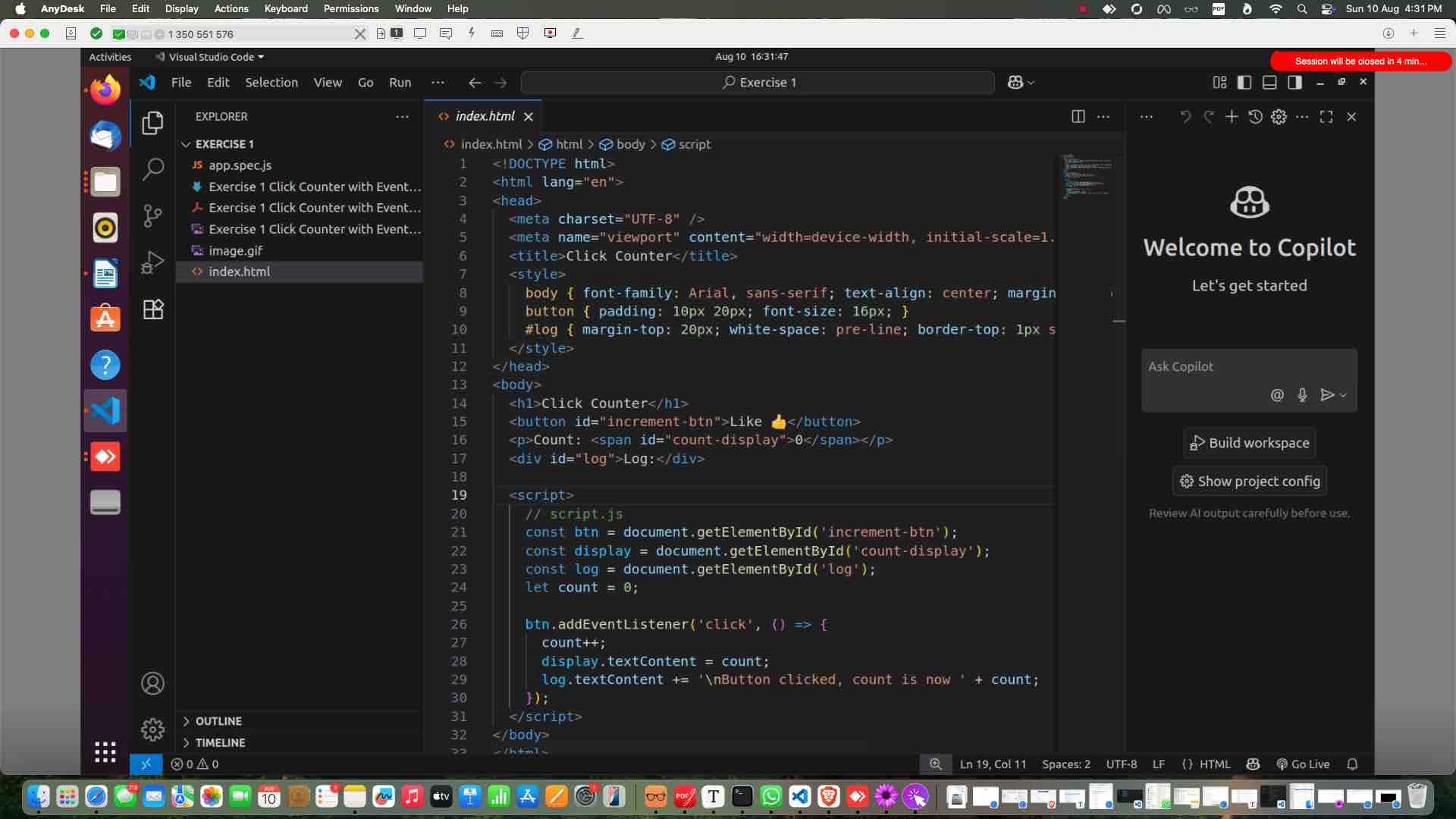
Open the exercise in VS Code

Open the exercise in VS Code
16

If Live Server vscode extention is not installed Install it.
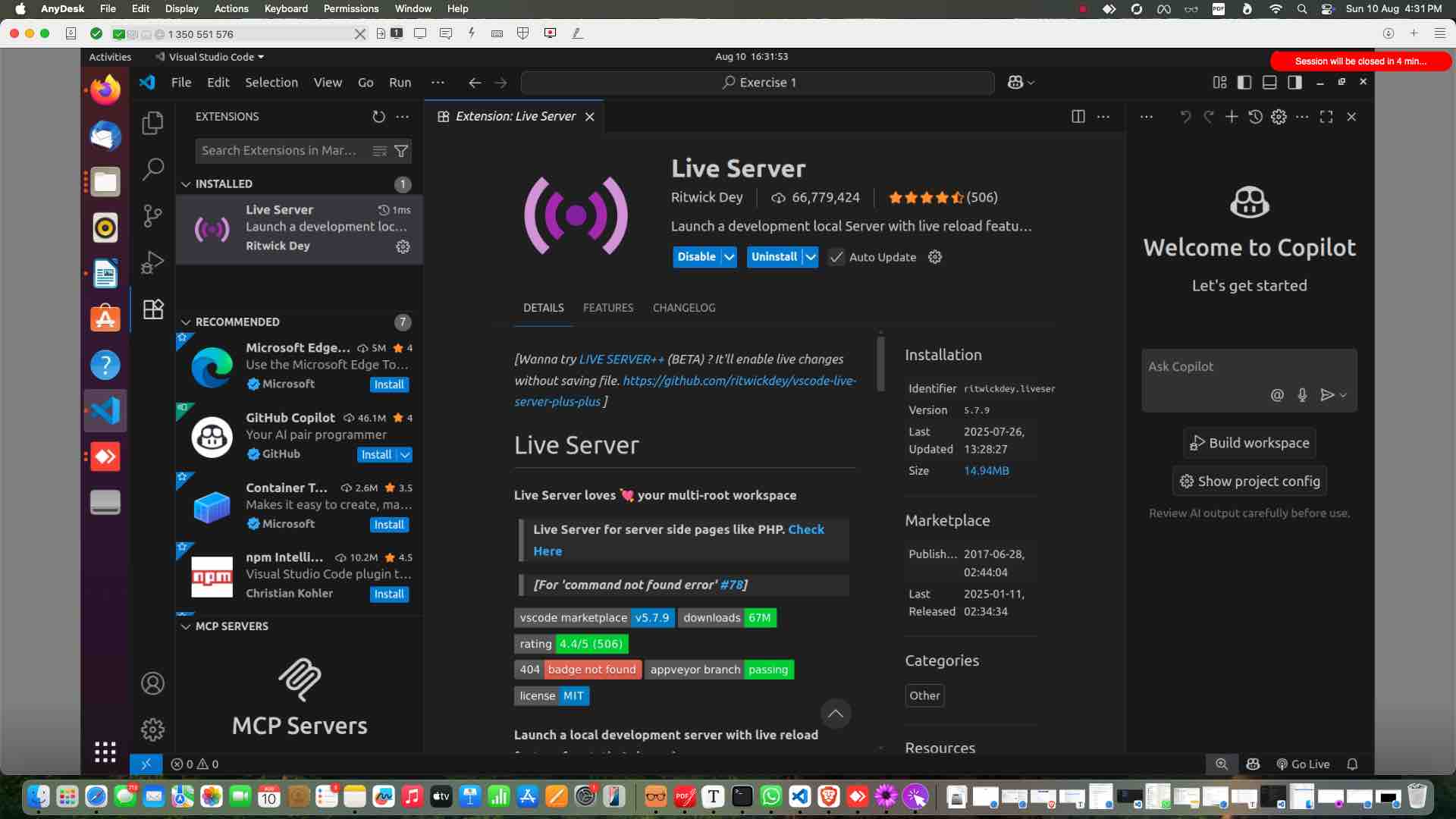
If Live Server vscode extention is not installed
Install it.
17

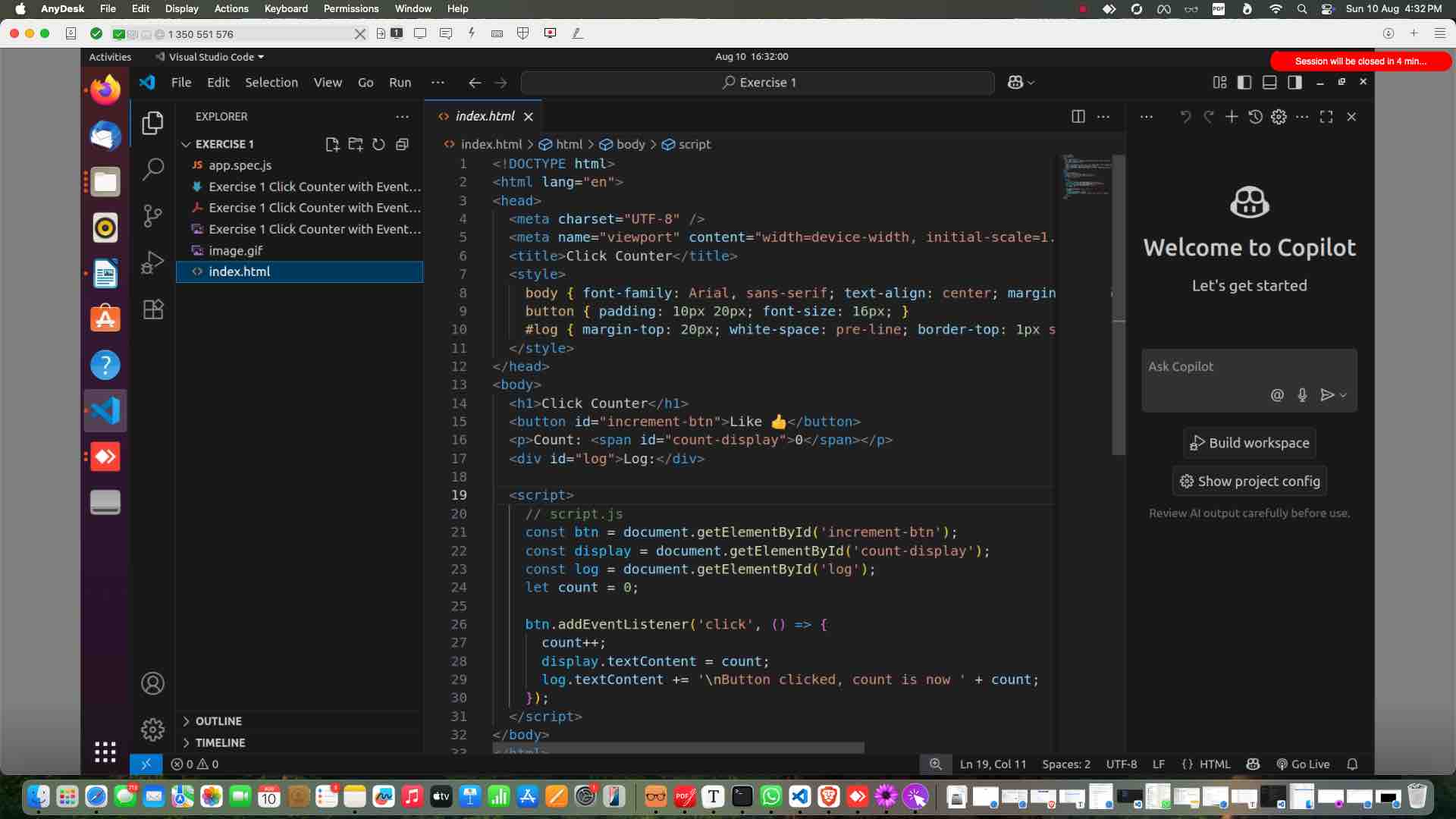
Back to the folder Open "index.html"

Back to the folder
Open "index.html"
18

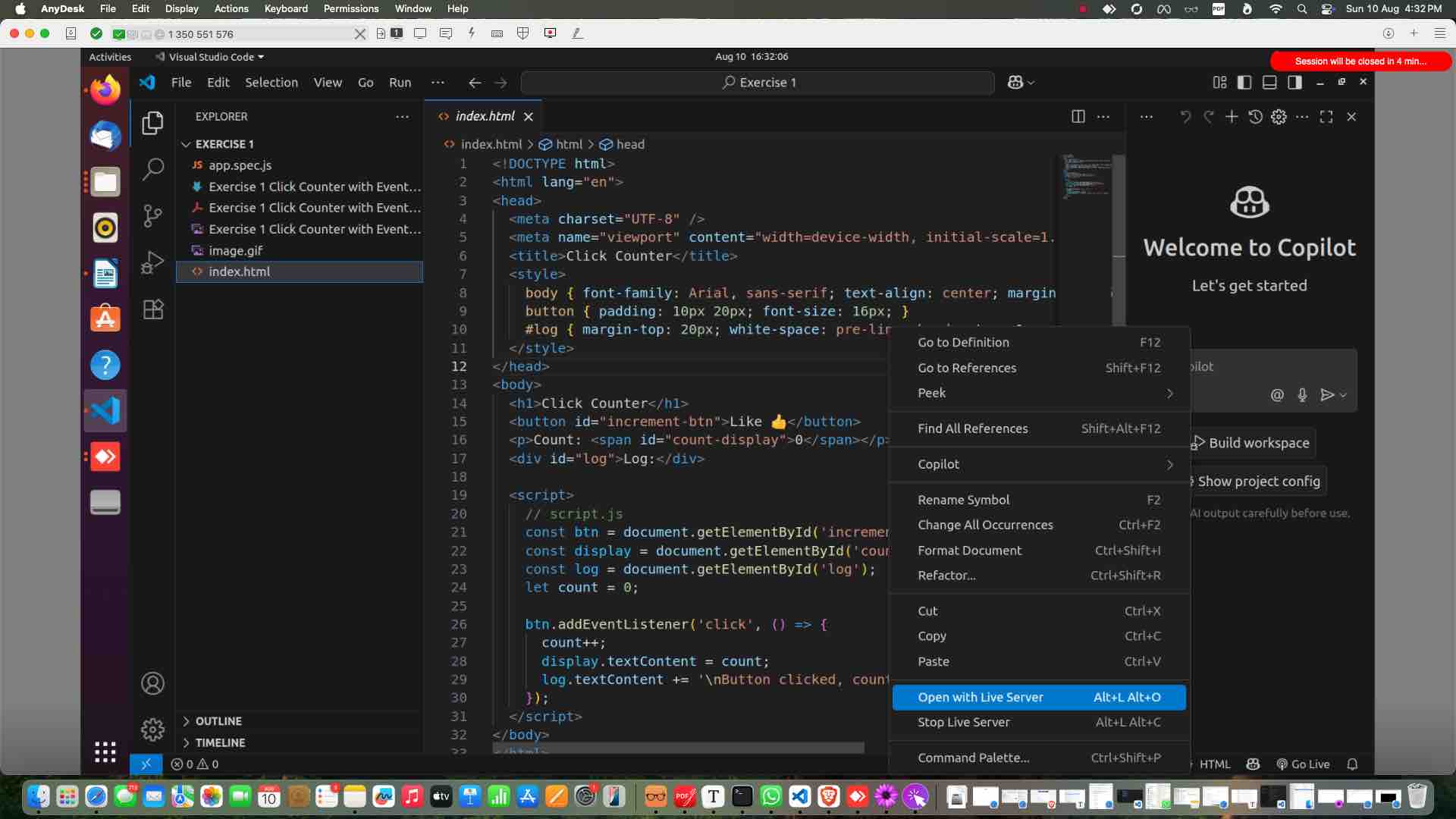
Run with live server.

Run with live server.
19

See the output in the browser. "http://127.0.0.1:5500/index.html"
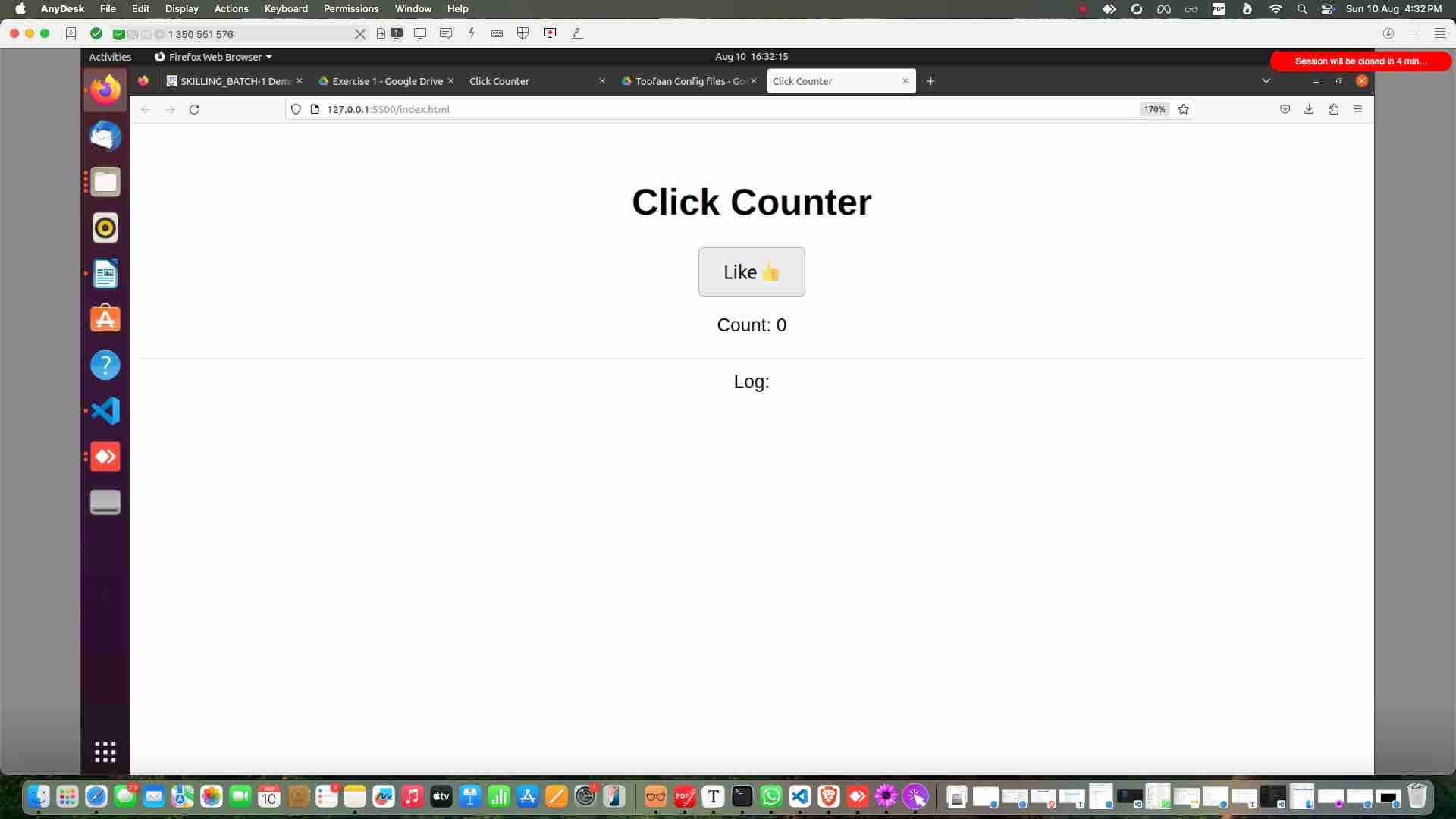
See the output in the browser.
"http://127.0.0.1:5500/index.html"
20

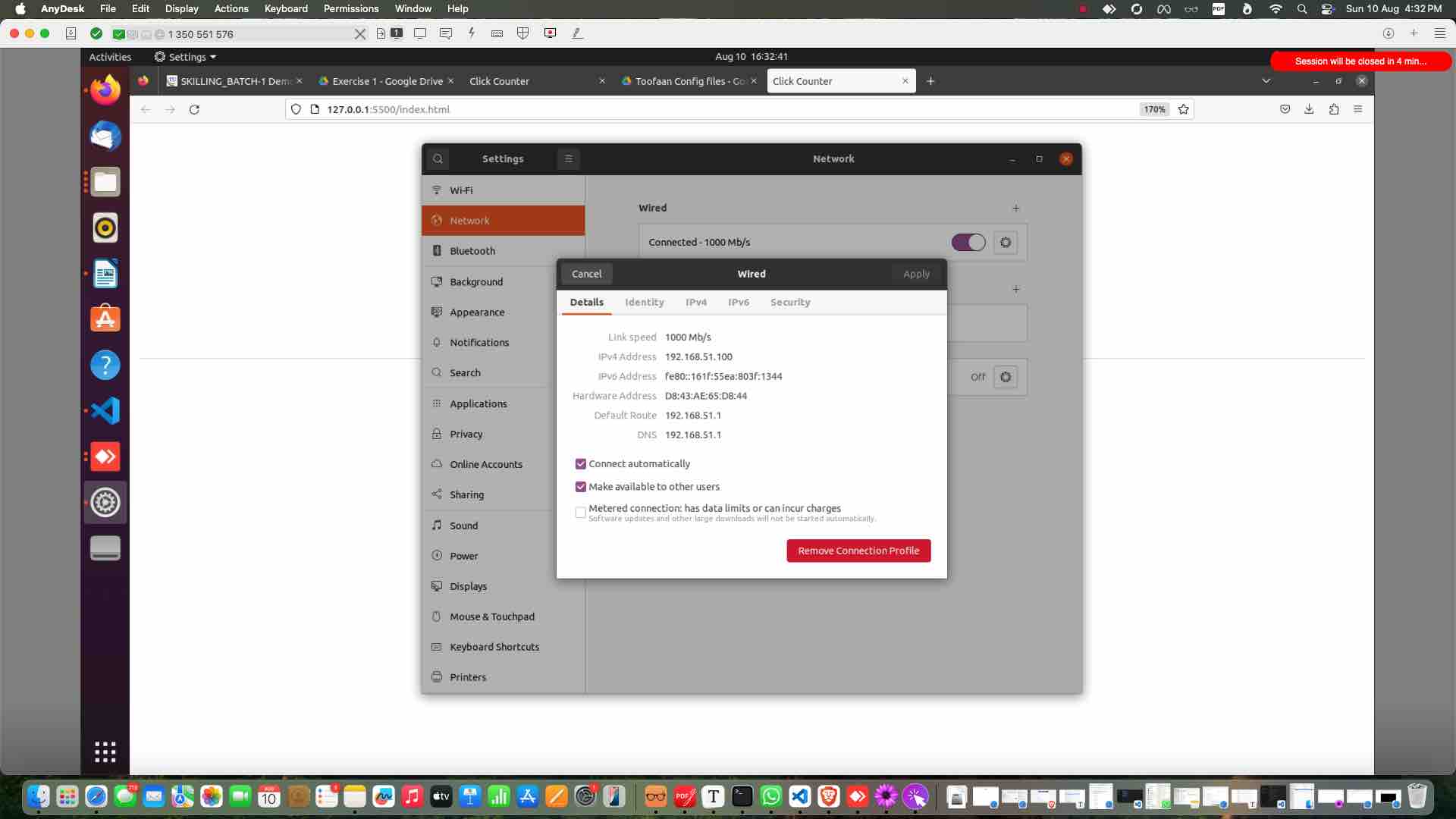
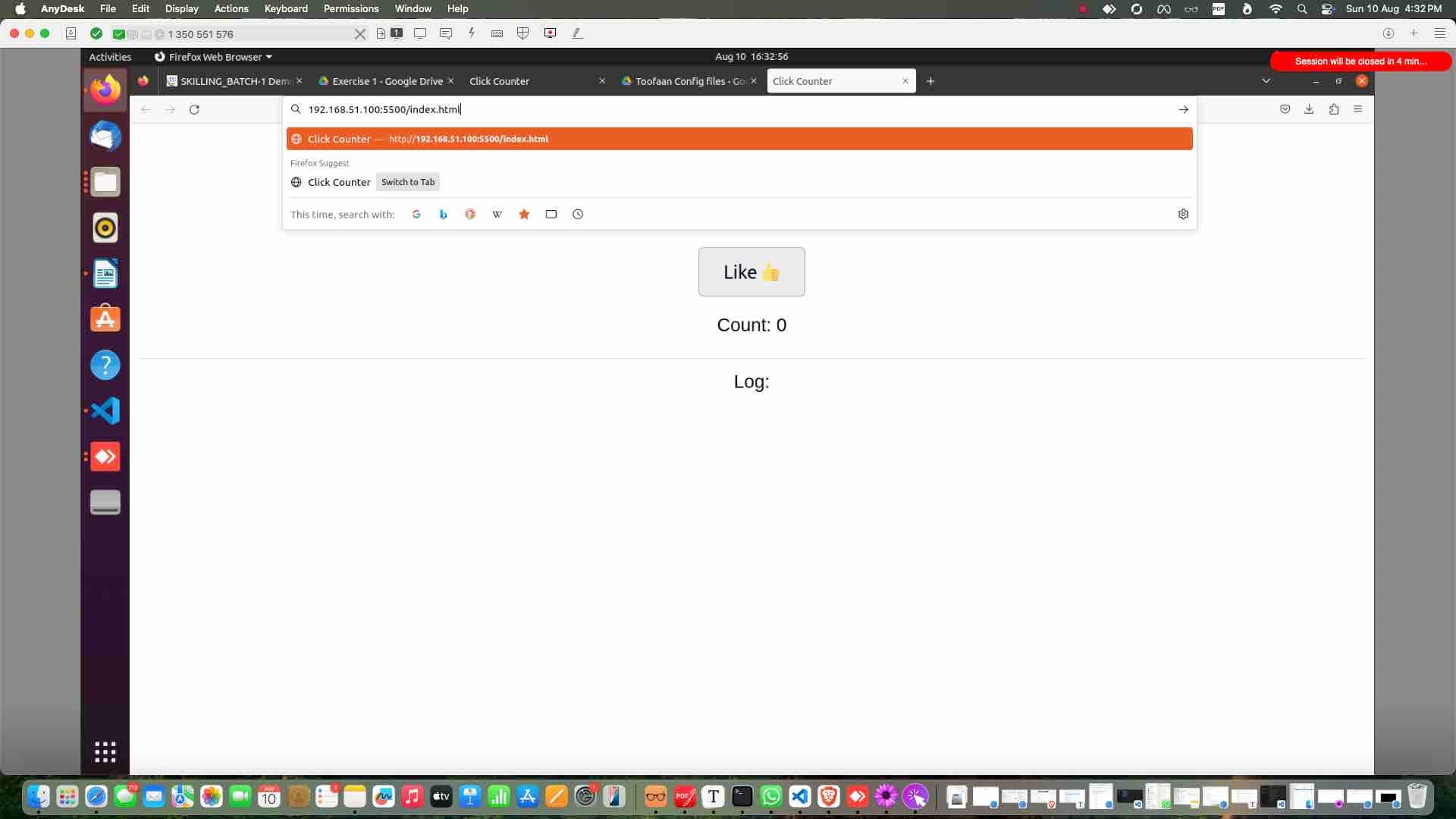
Replace this with the system IP address For Win Open CMD > ipconfig > IPv4 address

For Linux/Mac Open Terminal > ifconfig > IPv4 address
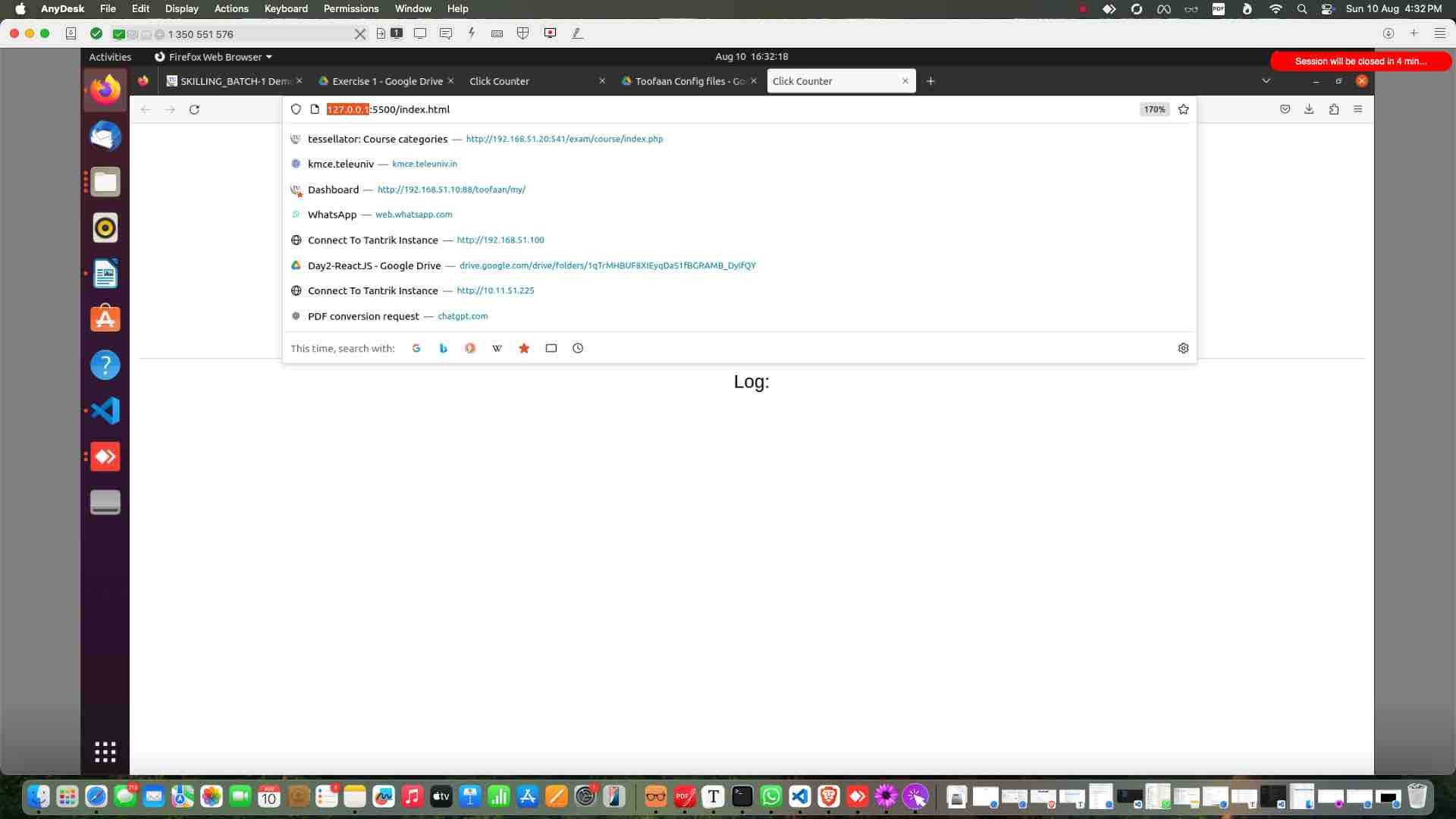
Replace this with the system IP address
For Win
Open CMD > ipconfig > IPv4 address

For Linux/Mac
Open Terminal > ifconfig > IPv4 address
21

E.g in Linux

E.g 
in Linux
22

Replace it

Replace it
23

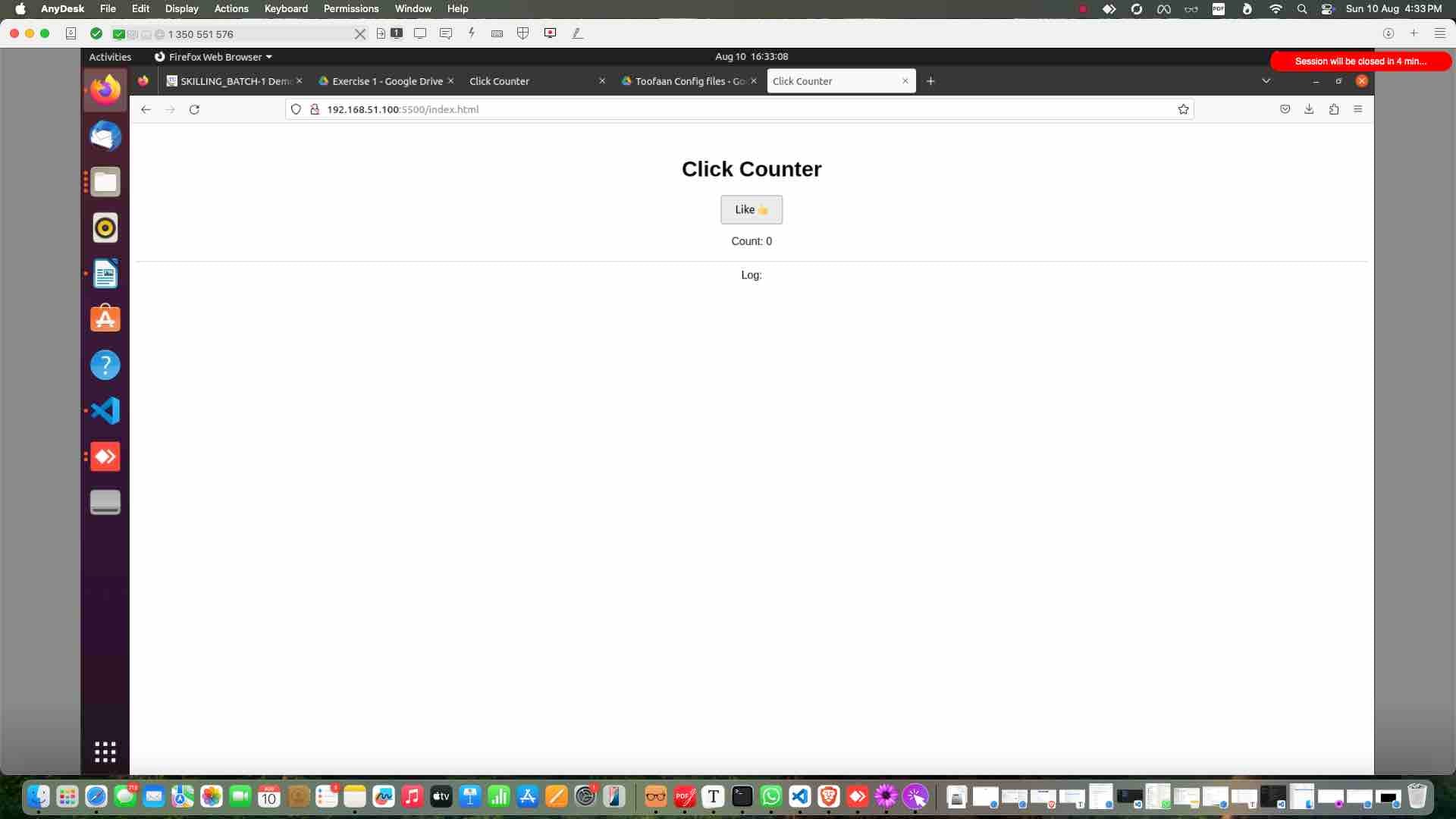
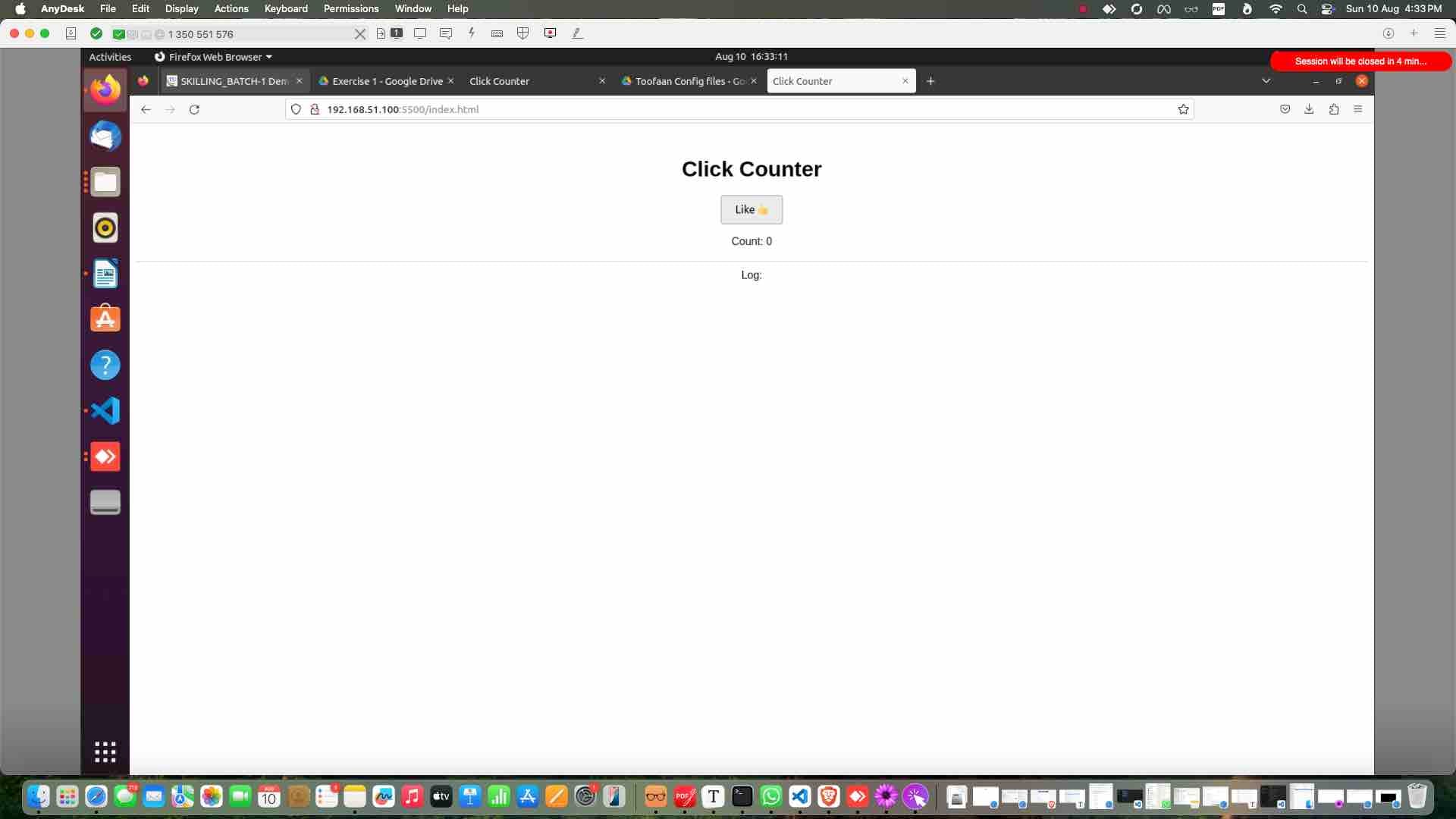
Still you should see app running

Still you should see app running
24

Lets test with playwright test case

Lets test with playwright test case
25

Click here on more

Click here on more